

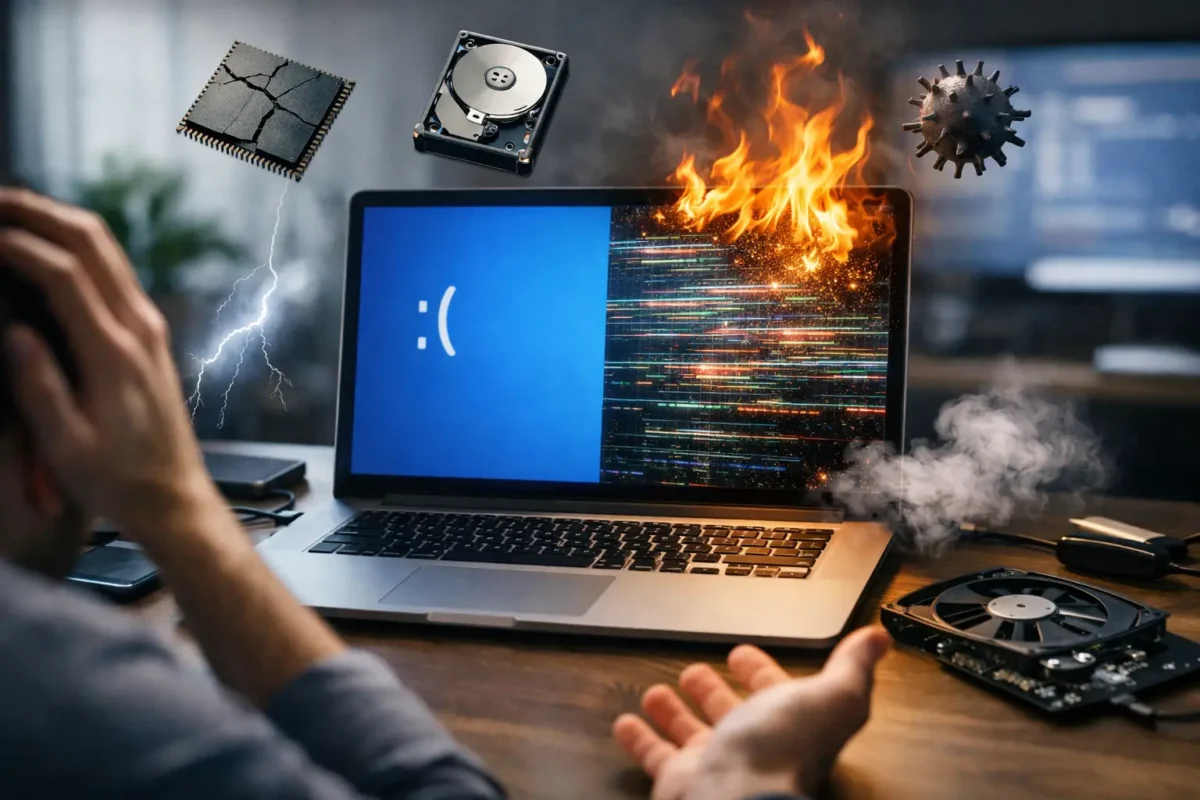
A laptop that crashes once during a big update is annoying. A laptop that crashes while you’re working, gaming, exporting files, or handling business tasks is a warning sign. The top causes of laptop crashes usually fall into a short list of software, thermal, storage, memory, power, or board-level faults, and the trick is knowing which one you’re actually dealing with before the problem gets worse.
A lot of people get stuck because every crash looks the same from the outside. The screen freezes, the system reboots, apps stop responding, or Windows throws a blue screen. But the root cause can be completely different. That is why proper diagnosis matters. Guessing leads to wasted money, random part replacement, and laptops that keep failing.
Top causes of laptop crashes and what they look like
Some crashes point clearly to software. Others are classic signs of hardware stress. In many cases, the symptoms overlap, which is why a methodical approach beats trial and error.
Overheating under load
Heat is one of the most common reasons laptops become unstable. Unlike desktops, laptops have limited airflow, compact cooling systems, and very little room for dust buildup before performance starts to drop. Once internal temperatures get too high, the system may freeze, throttle hard, shut down, or reboot to protect the CPU and GPU.
This tends to show up during gaming, video editing, large file transfers, or even long video calls. If the fan runs constantly, the bottom panel gets unusually hot, or crashes happen more often after the machine has been on for a while, overheating is a serious suspect.
The cause is not always just dust. Dried thermal paste, a failing fan, warped heatsink contact, or a board issue affecting fan control can create the same symptom. That is where real inspection matters. Cleaning helps in some cases, but not every thermal problem is a maintenance problem.
Failing storage drives
A dying SSD or hard drive can cause random crashes that people often mistake for bad RAM or a virus. When the laptop cannot reliably read or write system files, Windows may lock up, fail to boot, corrupt updates, or crash during ordinary tasks.
Traditional hard drives usually give more warning. You may notice slow boot times, clicking sounds, file errors, or folders that take forever to open. SSDs can be less obvious. They often fail in a way that looks sudden, with freezing, blue screens, or a machine that starts but becomes unstable fast.
Storage issues are especially important because they can turn into data loss. If the laptop is crashing and also acting slow, hanging during startup, or reporting repair errors, continuing to use it heavily can make recovery harder.
Bad or unstable memory
RAM problems are high on the list of top causes of laptop crashes because faulty memory affects almost everything the system does. If the laptop writes bad data to memory or cannot read it back correctly, the operating system may crash without much warning.
Memory-related crashes can happen during multitasking, game launches, browser use with many tabs open, or even at idle. Blue screens with changing error codes are common. So are apps that close unexpectedly for no clear reason.
Here is the catch: not every memory problem means the RAM stick itself is bad. The slot can be damaged, the board can have cracked solder joints, or a power rail feeding memory can be unstable. That is why swapping modules blindly does not always fix the issue.
Software problems that trigger hard crashes
Not every crash means hardware failure. A healthy laptop can still become unstable if the software stack is damaged, outdated, or fighting itself.
Corrupt operating system files or bad updates
Windows updates, driver installs, and interrupted shutdowns can leave the operating system in a bad state. When critical files are corrupted, the laptop may boot into repair loops, crash at login, or fail during normal use.
This is one of the more fixable causes, but it still requires careful work. If you jump straight to reinstalling the OS without checking drive health first, you may miss the real problem. A reinstall on a failing SSD may work for a day and then crash all over again.
Driver conflicts and firmware issues
Graphics drivers, chipset drivers, Wi-Fi drivers, and BIOS or firmware problems can all cause repeated crashes. This is common after major OS updates, hardware changes, or attempts to use generic drivers on specialized laptops.
Gaming laptops are especially vulnerable here because they rely on coordination between integrated graphics, dedicated graphics, power management, and thermal control. If one layer is unstable, you can get black screens, reboots, or lockups that seem random.
Firmware problems are often overlooked because they sit below the operating system. A bad BIOS setting, failed update, or unstable power delivery on the board can create crashes that look like software until deeper testing proves otherwise.
Malware and bloated background processes
Malware does not always announce itself dramatically. Sometimes it just chews up system resources, interferes with processes, or damages files until the laptop becomes unstable. Even without malware, overloaded startup items, junk utilities, and poorly written security tools can push an already aging system into repeated crashes.
That said, software clutter usually makes an underlying weak point worse rather than causing every crash by itself. If the laptop crashes even after a clean startup or fresh install, the issue is probably deeper.
Hardware faults people miss
This is where many repair attempts go sideways. A laptop may appear to have a software issue, but the real cause is on the board, in the charging circuit, or in the power path.
Battery and power delivery problems
If the battery is failing, swollen, or no longer regulating voltage properly, the laptop can shut down or reboot unexpectedly. The same goes for bad chargers, damaged DC jacks, and failing power management components on the motherboard.
One clue is when the laptop behaves differently on battery versus charger power. Another is when slight cable movement causes charging to cut in and out. In more advanced cases, the machine may crash only when the CPU or GPU draws more current.
That is not a settings problem. That points to unstable power delivery, and it needs proper electrical diagnosis.
Motherboard damage and board-level faults
A motherboard issue is one of the most serious entries on any list of top causes of laptop crashes. Liquid damage, failed capacitors, damaged MOSFETs, bad solder joints, chipset problems, and shorted components can all create intermittent or constant instability.
This is why some laptops crash no matter how many times the OS is reinstalled. If the board is failing, software fixes will not hold. The machine may pass one test and fail the next. It may crash only when warm, only when moved, or only during high power demand.
These faults are often missed by shops that only replace obvious parts. Real board-level testing can separate a bad motherboard from a repairable circuit problem, which can save the device and reduce replacement cost.
How to tell when a crash is becoming a bigger problem
Repeated crashes are bad enough, but certain warning signs mean you should stop pushing the laptop and get it checked. If the system is blue-screening more often, freezing during boot, showing display corruption, failing to detect storage, or shutting down under load, the failure may be progressing.
Data risk should also change how you respond. If the laptop contains business records, school work, creative projects, or anything you cannot replace, backup should come before experimentation. Every hard reboot, forced restart, and repeated boot attempt can make recovery harder if the drive or board is already unstable.
What a proper diagnosis should include
A good diagnosis does more than confirm that the laptop crashed. It isolates why. That means checking temperatures, storage health, memory stability, event logs, driver behavior, charging performance, and motherboard condition instead of assuming the first symptom tells the whole story.
Sometimes the fix is straightforward – remove malware, repair the OS, replace a fan, or install stable drivers. Sometimes it is more technical – replacing a failing SSD, correcting a power rail fault, repairing board damage, or addressing a memory circuit issue. It depends on what the machine is actually doing under test, not on what the internet says is most common.
That is the difference between troubleshooting and guessing. At Amazing Technology Group, this kind of failure is exactly why in-house diagnostics matter. If a laptop is crashing because of a board-level defect, a serious thermal problem, or unstable power delivery, you want a repair path built on evidence, not shortcuts.
If your laptop crashes once, monitor it. If it crashes repeatedly, treat it like a hardware or data problem until proven otherwise. The sooner the real cause is identified, the better your odds of saving both the machine and what is on it.