

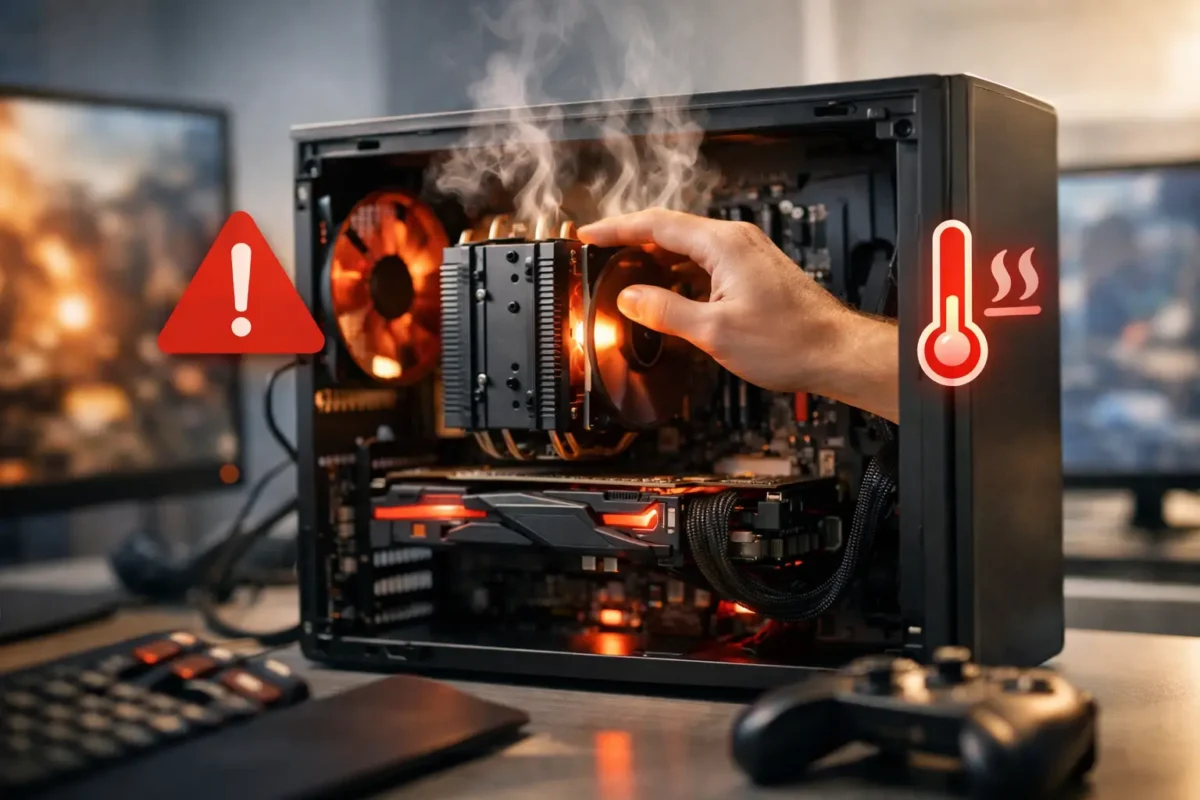
Your game is running smoothly, then the frame rate falls off a cliff. Fans may get loud, clocks drop, and performance stays poor until you exit the game or reboot. If you are asking, “why is my gaming pc throttling,” the system is usually responding to a condition it considers unsafe or unsustainable. Throttling is not the failure itself. It is the PC protecting itself from heat, power instability, or a control problem.
That protection can save expensive hardware, but it should not become normal behavior. A properly built and maintained gaming PC should hold stable performance through long sessions. The key is identifying what is forcing the CPU, GPU, memory, or storage to slow down.
What throttling actually looks like
Throttling means a component deliberately reduces its clock speed, voltage, power draw, or all three. The CPU and graphics card do this automatically when they hit a temperature limit, power limit, current limit, or configured performance limit. You may see lower FPS, stutter, input lag, game crashes, or a system that feels fast at the desktop but struggles under load.
Not every FPS drop is throttling. A demanding new game, a shader-compilation stutter, a full storage drive, background tasks, or a weak graphics card can also hurt performance. The difference is that true throttling often appears after the system has been gaming for several minutes and improves once temperatures or load come down.
Use a monitoring tool to watch CPU temperature, GPU temperature, clock speed, GPU power draw, and CPU package power while reproducing the issue. You are looking for a clear pattern: temperature rises, clock speed falls, and FPS drops at the same time. That is far more useful than guessing based on fan noise alone.
Why is my gaming PC throttling? Start with heat
Heat is the most common reason. Modern CPUs and GPUs are designed to run warm, especially in compact cases and high-end builds, so one temperature number does not tell the whole story. What matters is whether the component reaches its thermal limit and begins reducing performance to stay within it.
A CPU can throttle because its cooler is undersized, mounted poorly, or no longer transferring heat effectively. Dried thermal paste, uneven mounting pressure, a loose pump cable on an AIO liquid cooler, or a failing pump can turn a capable gaming system into a thermal problem quickly. An air cooler can have its own issues, including a failed fan, a clogged heatsink, or a fan curve that never ramps up when the processor is under load.
GPUs have similar failure points. Dust-packed heatsinks, worn fans, dried thermal paste, degraded thermal pads, and restricted intake airflow can all raise temperatures. On many newer cards, GPU core temperature may look acceptable while hotspot temperature or memory temperature is much higher. That is why a proper diagnosis checks more than one sensor.
Case airflow matters as much as the cooler itself. A powerful CPU and graphics card can recirculate hot air inside a case that has too few intake fans, blocked vents, or poor cable management. Glass-front cases, desks with enclosed cubbies, and systems pushed tight against a wall can also trap heat. Removing a side panel may lower temperatures temporarily, but it is a test, not a permanent repair. It tells you airflow needs attention.
Power limits and power supply problems can mimic heat issues
A system can throttle without being dangerously hot. CPUs and GPUs follow power and current limits set by the motherboard BIOS, graphics card firmware, and driver software. These limits are normal, but incorrect settings can leave performance on the table.
For example, a motherboard may run a CPU with conservative power limits after a BIOS reset. On the other hand, an aggressive overclock or automatic “performance enhancement” setting may push the processor too hard, causing it to hit thermal or electrical limits and cycle between fast and slow clocks. More voltage is not automatically more performance. It often becomes more heat.
The power supply also deserves real attention. A low-quality, aging, undersized, or failing PSU may not deliver clean, stable power when a GPU spikes under load. Symptoms can include sudden clock drops, black screens, game crashes, USB disconnects, or complete shutdowns. Do not assume wattage printed on a label tells the whole story. Quality, age, rail stability, cabling, and the actual demands of the system all matter.
Check that the graphics card is powered with the correct dedicated PCIe cables. Avoid questionable adapters, damaged connectors, and daisy-chained cable configurations when the card manufacturer calls for separate cables. If a connector looks discolored, warped, or heat-damaged, stop using the system until it is inspected.
Software, drivers, and settings are part of the diagnosis
Hardware gets blamed first, but software can trigger or exaggerate throttling behavior. A corrupted GPU driver, unstable chipset driver, outdated BIOS, or bad tuning profile can cause erratic clocks and poor performance. So can background software that hooks into games, such as overlays, recording utilities, RGB control programs, and aggressive antivirus scans.
Start by returning CPU, GPU, and RAM tuning to known-stable settings. If the system is overclocked, undervolted, or using custom fan curves, test at stock settings before changing hardware. A good undervolt can reduce heat and improve sustained performance, but a marginal one can cause game crashes or strange clock behavior. Stability must be proven under real load, not just during a short benchmark.
Windows power settings and GPU control-panel settings can also matter. Laptops are especially likely to use a balanced or battery-saving profile, but desktops can inherit odd settings after updates or software installations. Confirm the system is using the dedicated GPU for the game, not integrated graphics. Make sure frame rate caps, vertical sync, and game-specific power settings match what you intend to test.
Storage is another overlooked factor. A nearly full or failing SSD will not usually make a GPU thermally throttle, but it can cause severe stutter, long texture loads, and apparent performance drops. NVMe drives can also overheat during large transfers or sustained activity if they lack proper airflow or a heatsink. Check drive health and free up space before assuming every stutter is a graphics problem.
A practical troubleshooting order that avoids wasted money
Do not start by buying a new graphics card or water cooler. First, establish a baseline with the side panels installed and the PC in its normal location. Run the same game or benchmark long enough for the problem to appear, while recording temperatures, clocks, and power readings.
Then work through the simple checks before disassembling the machine:
- Clean dust from intake filters, fans, heatsinks, and radiators using safe methods.
- Confirm every CPU, GPU, radiator, and case fan spins and ramps under load.
- Check that the CPU cooler is secure and that an AIO pump reports normal operation.
- Reset unstable overclocks, undervolts, and custom power settings to stock values.
- Update BIOS, chipset, and graphics drivers carefully, one change at a time.
- Test with the case positioned in open air, not inside a cabinet or against a blocked vent.
If temperatures improve substantially after cleaning or improving airflow, you have a strong direction. If the GPU or CPU still hits limits with healthy cooling, the next step is deeper testing. That may include checking cooler contact pressure, replacing thermal interface material, testing the PSU, inspecting motherboard power delivery, or verifying sensor data against known-good components.
When throttling points to a repair-level problem
Some throttling issues are not maintenance problems. A failed AIO pump, damaged GPU fan circuit, shorted sensor line, weak voltage-regulation component, failing motherboard MOSFET, or degraded power stage can make the system protect itself even after cleaning and software resets. Board-level faults can be intermittent, which is why a quick boot test often misses them.
This is where parts-swapping gets expensive. Replacing a GPU because it runs hot will not fix a motherboard control issue. Replacing a power supply will not repair a graphics card with a failing fan controller. A proper diagnosis compares sensor behavior, load response, voltage stability, cooling performance, and physical condition before recommending a repair.
For Riverside County gamers dealing with repeat throttling, shutdowns, or a PC that has already been “fixed” without results, Amazing Technology Group can perform hands-on diagnostics rather than guessing at parts. Complex cooling, power, and board-level issues need that level of testing.
Do not keep forcing a throttling PC through long gaming sessions while temperatures climb or performance becomes erratic. Save your data, stop any unstable overclock, and get reliable measurements first. The right repair may be as straightforward as restoring airflow, or it may require deeper electrical work, but catching the cause early is how you protect the hardware you paid for.