

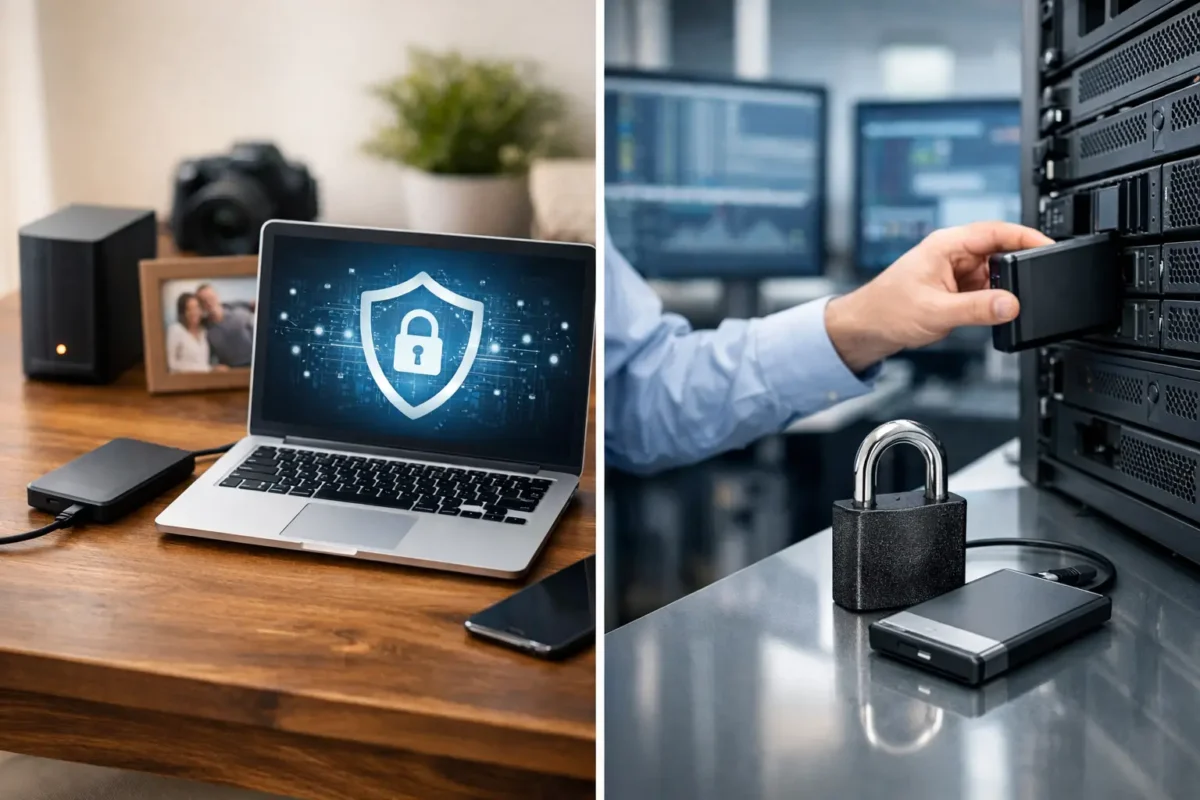
A laptop can be repaired. A failed SSD can sometimes be recovered. But the only copy of family photos, customer records, DJ set files, accounting data, or a semester of work may be gone for good. The best ways to prevent data loss are not complicated, but they do require a plan that still works when hardware fails, ransomware hits, or someone deletes the wrong folder.
Data loss is rarely caused by one dramatic event. More often, it starts with a backup that was never checked, a cloud folder mistaken for a true backup, a drive that was already showing warning signs, or a power event that damaged more than one device. Prevention means building layers so one failure does not become a permanent loss.
Best Ways to Prevent Data Loss Before a Failure
The most reliable approach is the 3-2-1 backup rule. Keep at least three copies of your data, on two different types of storage, with one copy stored offsite. Your working computer is one copy. An external drive may be the second. An encrypted cloud backup or a drive kept at another secure location becomes the offsite copy.
This setup protects against different kinds of trouble. A local external drive can restore a large amount of data quickly after a bad update or failed internal drive. An offsite copy protects you if the computer and local backup are stolen, damaged by fire, or hit by a power event. One backup type alone is not enough.
For most home users, automated backups are the right answer. Manual backups depend on memory, and memory fails when life gets busy. Set the computer to back up daily or continuously while it is connected to power and your backup destination. Then leave the process alone, except for checking that it actually finishes.
Businesses should take this further. Back up critical workstations, servers, shared folders, line-of-business applications, and configuration files. A backup of documents is useful, but it will not fully restore operations if the business also loses email archives, accounting databases, network settings, access-control records, or application data.
A synced folder is not always a backup
Cloud sync services are useful, but they are often misunderstood. If a file is deleted from a synced folder, encrypted by ransomware, or replaced with a damaged version, that change may sync everywhere. Version history can help, but retention periods vary and are not a substitute for an independent backup.
Use sync for access and collaboration. Use a separate backup system for recovery. The distinction matters when the original problem has already been copied to every connected device.
Test restoration, not just backup status
A backup that reports “successful” is only half the job. Periodically restore a few files to a different location and open them. For a business, test a full recovery plan for a workstation or critical system. Confirm that the restored files are current, readable, and complete.
This is where many backup plans fail. The files technically exist, but nobody knows the encryption key, the backup account owner has left the company, the drive is unreadable, or the backup software was excluding an important folder. A short recovery test exposes those problems before an emergency does.
Protect Hardware From the Problems That Cause Data Loss
Storage devices fail. Hard drives have moving parts, SSDs wear over time, and sudden power loss can corrupt data on either one. Quality hardware reduces risk, but no drive brand or storage type eliminates it.
Watch for warning signs: repeated crashes, files that take unusually long to open, clicking or grinding from a hard drive, drives that disconnect, frequent repair prompts, or a computer that will not consistently boot. Do not keep restarting a device that is showing these symptoms. Every extra attempt can make recovery harder, especially if a failing hard drive has physical damage.
When a drive becomes unstable, stop using it for normal work. Do not install recovery software onto the affected drive, save new files to it, or attempt random online fixes. Secure any existing backup first, then have the device properly diagnosed. At Amazing Technology Group, difficult storage and board-level failures are evaluated with the goal of preserving recoverable data, not simply replacing parts and hoping for the best.
Power protection is another practical layer. Use a quality surge protector for individual workstations and a battery backup, also called a UPS, for desktops, network equipment, servers, and systems that cannot shut down abruptly. A UPS gives you time to save work during an outage and can prevent the file corruption that follows a sudden shutdown.
It depends on the equipment. A basic home laptop may only need a quality surge protector, while a business server, gaming PC, or workstation running active projects benefits from a correctly sized UPS. Network-attached storage and modem/router equipment should also be protected. A backup is less useful if the same electrical event damages every device that holds it.
Secure the Data You Already Backed Up
Ransomware does not need to break a drive to cause data loss. It can encrypt documents, shared folders, and connected backup drives in minutes. Phishing emails, reused passwords, fake software downloads, and unpatched remote-access tools are common entry points.
Start with unique passwords and multi-factor authentication on email, cloud storage, backup accounts, and administrator accounts. Email deserves special attention because access to an inbox can let an attacker reset passwords for nearly everything else. Use a password manager if maintaining unique passwords manually is unrealistic.
Keep operating systems, browsers, security software, network gear, and applications updated. Updates can be inconvenient, particularly on specialized DJ, gaming, production, or business systems. The practical answer is to schedule updates, confirm compatibility where necessary, and back up before major changes. Delaying every update indefinitely leaves known security holes open.
Separate user accounts from administrator accounts when possible. Daily work should not require full administrative privileges. On a business network, limit who can access financial records, customer data, shared drives, and backup systems. If one employee account is compromised, limited permissions reduce the damage an attacker can do.
For valuable or sensitive information, encrypt both the device and the backup. Encryption protects data if a laptop or external drive is lost, but it also creates a responsibility: securely store recovery keys. If the only recovery key is saved on the encrypted computer, it is not a recovery plan.
Build Habits That Prevent Everyday Loss
Not every loss comes from a failed drive or cyberattack. People accidentally overwrite work, delete folders, spill liquid on laptops, and move important files between devices without confirming the transfer completed.
Use clear folder structures and consistent file names for important projects. Save active work in a location included in automated backups. Avoid keeping the only copy on a desktop, Downloads folder, USB flash drive, SD card, or a single external drive. These locations are convenient, but convenience is not protection.
Before formatting a drive, resetting a computer, upgrading storage, or handing a device to someone else, verify the backup. Open a sample of the files from another device if possible. This is especially critical for photo libraries, music collections, project sessions, game saves, business exports, and local email archives, which may live outside the folders people normally think to copy.
For households, choose one person to own the backup routine. For businesses, assign clear responsibility for backup alerts, access credentials, recovery testing, and employee offboarding. A plan assigned to “someone” is usually a plan nobody performs.
When Prevention Fails, Protect the Remaining Evidence
If you suspect a drive has failed, a device has been liquid damaged, or files have disappeared, the first move matters. Power the system down if it is making unusual mechanical sounds, repeatedly crashing, or showing signs of electrical damage. Do not keep using the device to browse, download tools, or create new files.
If ransomware is suspected, disconnect the affected computer from the network and unplug external drives. Do not erase the device before identifying what happened and confirming that clean backups are available. A rushed reset can destroy evidence and make a controlled recovery more difficult.
Take note of what changed: error messages, recent updates, dropped devices, power outages, strange login alerts, and the last time the files were accessible. That information helps technicians determine whether the problem is software corruption, storage failure, malware, a damaged file system, or a deeper hardware issue.
The goal is not to treat every technical issue as a disaster. It is to make sure a single bad day does not erase work that took years to create. Set up automated backups, keep one copy away from the computer, protect the equipment and accounts around your data, and test a restore before you need one. That is how data stays recoverable when the unexpected finally shows up.