

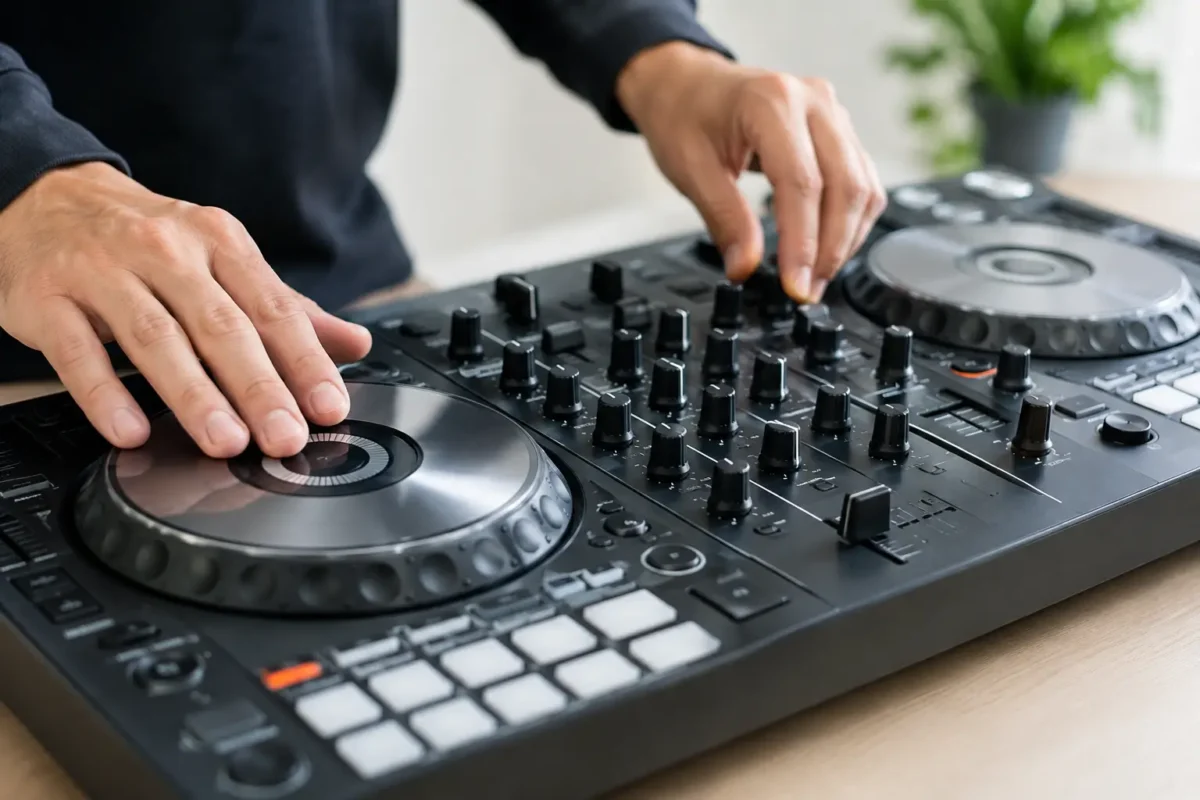
A jogwheel that drifts, misses touch, or behaves differently from the other deck can turn a clean transition into a bad moment fast. Before you try to calibrate DJ controller jogwheels, separate a software setting problem from a real hardware fault. Calibration can correct a controller that has lost its reference point. It cannot repair a worn touch sensor, contaminated encoder, damaged ribbon cable, or failing circuit on the main board.
That distinction matters because DJ controllers are not built the same way. Some have a software calibration routine inside their utility application. Others require a service mode, a specific driver, or factory diagnostic software. A few models do not offer user calibration at all. Forcing the wrong process, installing random firmware, or opening the deck without a plan can create a larger repair than the original issue.
Start With the Symptoms, Not the Calibration Menu
Jogwheels perform more than one job. Depending on the controller, they can read platter rotation, touch sensitivity, pressure, position, LED behavior, and shift commands. The symptom gives you the first useful clue about which part of that system is failing.
If the jogwheel rotates smoothly but software playback does not move, the issue may be an encoder signal, a USB communication problem, a driver conflict, or mapping configuration. If playback moves when the wheel is turned but scratching does not engage when you touch the top, focus on the capacitive touch circuit, grounding, sensitivity settings, or the top plate connection.
A wheel that randomly enters scratch mode without being touched is often dealing with contamination, moisture, static sensitivity, a grounding issue, or a failing sensor circuit. A wheel that physically rubs, binds, wobbles, or feels uneven is mechanical first. Calibration will not fix a warped platter, broken spindle, loose mounting hardware, or damaged bearing surface.
Compare both decks under the same conditions. Load the same track, use the same software mode, and test touch response, rotation response, pitch behavior, and LED feedback. A direct left-versus-right comparison is much more useful than guessing from one bad performance.
Before You Calibrate DJ Controller Jogwheels
Start with the basics that can mimic a jogwheel fault. Power down the controller, disconnect it from the computer, and give it a few minutes to fully discharge. Inspect the USB cable and test with a known-good cable connected directly to the computer, not through a hub. Unstable USB power and poor data connections can cause intermittent deck behavior that looks like a sensor issue.
Clean the jogwheel surface with a dry microfiber cloth first. Skin oils, residue, moisture, and dust around the platter edge can interfere with capacitive touch detection. Do not spray cleaner into the assembly or flood the edge gap with alcohol. Liquid can travel onto sensor boards, flex cables, and switches where it causes corrosion or shorts.
Then verify the software side. Use the controller manufacturer’s current supported driver and firmware for your operating system. Confirm that the DJ software recognizes the correct hardware and that no custom mapping has reassigned jog functions. If the problem started immediately after a software update, test with the manufacturer-approved version or review the software’s controller configuration before assuming the hardware failed.
Also rule out environmental factors. Capacitive jogwheels can react differently when a performer is heavily insulated from ground, when the room is extremely dry, or when the controller is powered from a questionable outlet. These conditions are usually temporary, but they are worth identifying before disassembling expensive equipment.
Use the Manufacturer’s Calibration Procedure
When your model supports calibration, follow its exact procedure. The process commonly requires the controller to sit on a stable, level surface with the jogwheel untouched during initialization. Some units ask you to rotate the wheel slowly through a full range; others measure the zero point automatically after a button combination or utility command.
The general workflow is straightforward, but the order matters:
- Close DJ software and any background utility that may be communicating with the controller.
- Connect the controller using a reliable power source and direct USB connection.
- Open the model-specific settings or utility application, if the manufacturer provides one.
- Run the jogwheel or touch-sensor calibration exactly as instructed, without touching the platter during its reference measurement.
- Restart the controller and test both decks in the DJ software.
Do not use a calibration guide written for a different Pioneer, Denon, Rane, Vestax, or other controller model. Two products from the same brand can use completely different sensor designs and service procedures. A generic key combination found in a forum may reset settings you need without performing the calibration you intended.
If the official process completes but the wheel still fails, document what happened. Does it fail on touch, on rotation, after warming up, only through one USB port, or only when the unit is assembled? Those details make professional diagnosis faster and more accurate.
When Calibration Is Not the Fix
A successful calibration result is not proof that the hardware is healthy. It only proves that the controller accepted a reference procedure. The real test is whether the jogwheel delivers stable, repeatable performance during normal use.
Intermittent failures are especially suspicious. A jogwheel that works for 10 minutes and then starts jumping may have a cracked solder joint, heat-sensitive component, oxidized connector, or flex cable that loses contact as the chassis shifts. A wheel that only works when pressed at a certain point can point to a loose board, damaged sensor layer, or worn mechanical support.
Controllers that have been dropped, exposed to liquid, stored in humid environments, or transported without proper protection deserve a deeper inspection. Damage is not always visible from the outside. The platter can look perfect while the board beneath it has corrosion, a torn trace, or a connector that is partially unseated.
This is where part-swapping becomes expensive. Replacing the entire jog assembly may be appropriate when the assembly is physically damaged and available. But in many cases, the fault is on a small daughterboard, connector, power rail, or signal path. Board-level diagnosis can identify the actual failure rather than replacing good parts around it.
What a Real Jogwheel Diagnosis Looks Like
A competent repair process starts by confirming the complaint instead of assuming the customer’s diagnosis is complete. The controller is tested with the proper software environment, known-good cables, and both decks compared side by side. Technicians inspect the platter movement, touch detection, encoder output, connector condition, and power delivery to the jogwheel circuit.
If internal access is required, the unit should be opened carefully. DJ controllers often use layered assemblies, fragile ribbon cables, and screws of different lengths. A rushed teardown can damage a flex cable or pinch wiring during reassembly, leaving the controller worse than it arrived.
From there, the repair path depends on the evidence. It may involve cleaning contamination from a sensor area, reseating or replacing a damaged cable, repairing a connector, replacing a failed component, or performing micro-soldering work on the PCB. Firmware and calibration are completed after the physical fault is corrected, not used as a substitute for it.
For working DJs, the goal is not simply getting a jogwheel to respond once on a bench. It is restoring predictable feel and reliable tracking through a full set. Both decks should be tested for matching behavior, and the controller should remain stable after extended operation.
Can You Keep Using the Controller?
If only touch response is failing, you may be able to use the controller temporarily with jog mode changes, sync features, or an external mixer workflow. That is a workaround, not a repair. Continuing to use a unit with intermittent input can be risky during paid events, especially if the problem is spreading or the controller is disconnecting.
Stop using the controller and have it inspected promptly if you smell overheating, see liquid residue, experience repeated USB disconnects, notice flickering LEDs near the affected deck, or find that the jogwheel is physically scraping. Those signs can indicate a fault beyond a simple calibration issue.
Amazing Technology Group handles difficult DJ equipment repairs with the same approach used for other complex electronics: test the fault, isolate the cause, and repair what is actually broken when practical. For Riverside County DJs and mail-in customers, that means a path beyond replacing an expensive controller just because one platter stopped behaving.
Before your next set, test the repaired or recalibrated jogwheel with the way you actually perform: touch scratches, nudges, long blends, hot cues, and extended playback. A controller earns your trust when it responds the same way every time you reach for it.