

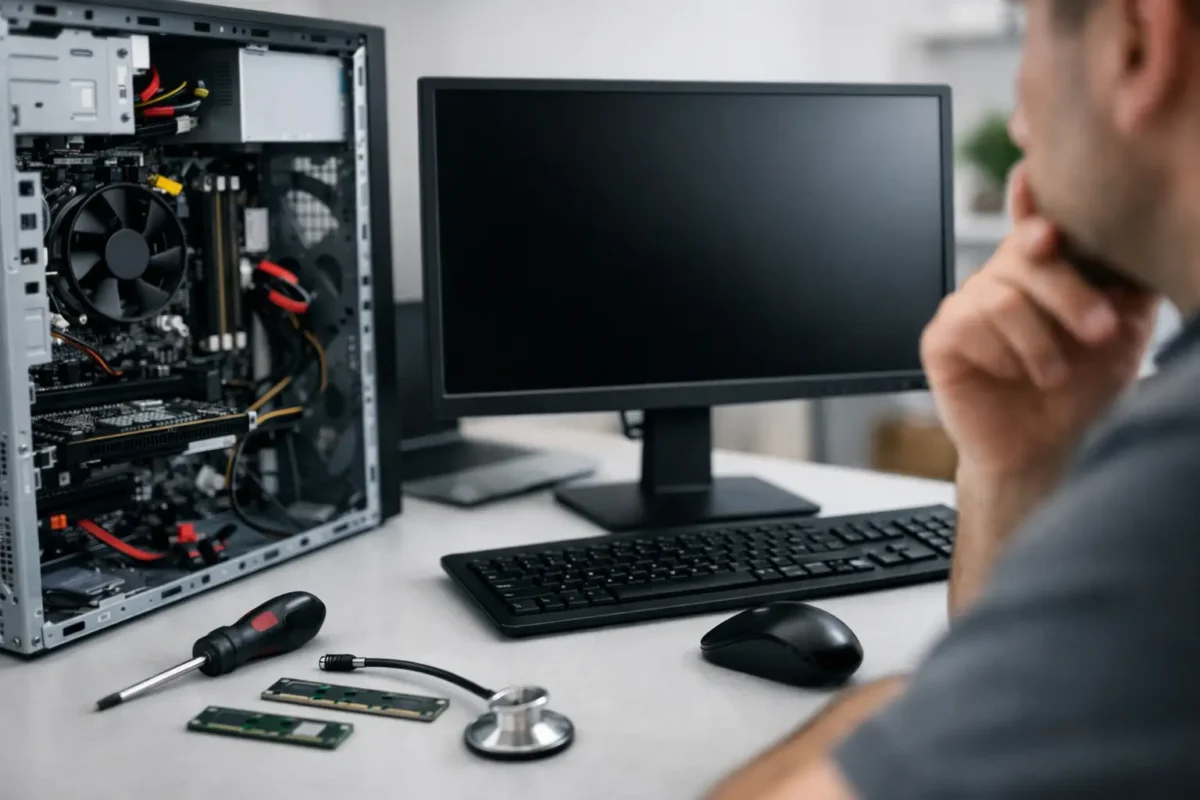
A desktop that was working yesterday and does nothing today usually fails in one of a few predictable ways. If you are asking, “why wont my desktop boot,” the real answer depends on what the machine is doing right now – no lights, no fans, fans but no display, power cycling, beeping, or freezing at the logo screen. Those details matter because they point to very different failures.
The biggest mistake people make is treating every boot problem like a bad hard drive or a dead power supply. Sometimes it is that simple. Sometimes it is memory training, a corrupted BIOS, a short on the motherboard, GPU failure, CPU power issues, or a storage device that is stopping POST. Good troubleshooting starts by narrowing the symptom before you start buying parts.
Why won’t my desktop boot? First identify the failure type
“Won’t boot” gets used for several different problems, and each one has its own path.
If the desktop shows no signs of life at all, you are dealing with a power delivery issue, a failed power button circuit, a short, or a dead board. If fans spin and lights come on but there is no display, the system may be failing POST before video output. If it reaches the motherboard logo and hangs, the issue is often storage, BIOS settings, or operating system corruption. If it turns on and off repeatedly, that usually points to unstable power, bad RAM, CPU or board faults, or thermal protection.
That distinction saves time. It also prevents the common repair-shop shortcut of swapping random parts until something changes.
Start with the simple checks before you tear it apart
Make sure the outlet works and the power strip is not the problem. It sounds basic, but bad surge protectors and loose power cables cause more service calls than most people expect. Confirm the power supply switch on the back is in the on position and the voltage selector, if your unit has one, has not been moved.
Then look at the monitor side of the problem. A desktop may be booting normally while the display cable is loose, connected to the wrong port, or plugged into motherboard video when the system actually uses a dedicated graphics card. If the keyboard lights respond and you can hear Windows startup sounds, your issue may be video output rather than boot failure.
After that, disconnect non-essential peripherals. USB devices, external drives, hubs, and even some faulty accessories can hold up startup or create confusing symptoms. Strip the system back to the tower, monitor, keyboard, and power cable.
No power at all usually means start with power delivery
When there are no fans, no LEDs, and no response from the power button, the power supply is the first suspect, but not the only one.
A failed PSU can stop everything cold. So can a shorted motherboard, damaged front panel power switch, bad 24-pin or CPU power connection, or liquid damage that created a board fault. On custom gaming systems, we also see loose modular PSU cables and partially seated motherboard power connectors more often than people expect, especially after transport or upgrades.
If you are comfortable opening the case, reseat the 24-pin motherboard cable and the 4-pin or 8-pin CPU power cable. Make sure the front panel power button leads are connected correctly. If your motherboard has standby LEDs and those are off, that is another clue that power is not reaching the board properly.
The trade-off here is simple: replacing a power supply is easy compared to board-level diagnosis, but guessing wrong wastes money. A dead-short motherboard can make a good PSU appear bad. That is why proper testing matters.
Fans spin but nothing on screen points to POST failure
This is one of the most common situations behind the question, “why wont my desktop boot.” The machine powers on, fans spin, RGB lights up, but there is no picture and no normal startup.
In many cases, RAM is the problem. One poorly seated stick or one failing module can stop POST completely. Reseat the memory and test one stick at a time in the correct slot recommended by the motherboard manual. If you recently enabled XMP or changed RAM settings, clear CMOS and try again with default BIOS values.
Graphics hardware is another major cause. If you have a dedicated GPU, reseat it and confirm its PCIe power cables are connected. If your CPU and motherboard support onboard video, remove the graphics card temporarily and test from the motherboard display output. That single step can tell you whether the system is failing because of the card or because the board is not getting through POST at all.
Listen for beep codes or check motherboard debug LEDs if your system has them. CPU, DRAM, VGA, and BOOT indicators are there for a reason. They do not replace full diagnostics, but they can narrow the problem fast.
Boot looping and random shutdowns usually mean instability
A system that powers on for a few seconds, shuts off, and tries again is often struggling with a low-level hardware issue. This can happen after a CPU upgrade, cooler replacement, BIOS update, or even a routine cleaning.
Start by checking the CPU cooler installation. If it is too tight, uneven, or not making proper contact, some systems will shut down quickly for thermal protection. If the CPU fan is not plugged into the proper header, some boards will also refuse to complete startup. On the other side, too much pressure or a bent motherboard can create intermittent contact problems around the socket.
This is also where motherboard faults show up. Damaged VRM components, failing capacitors, shorted USB lines, and BIOS corruption can all create looping behavior. These are the cases that get misdiagnosed as “bad motherboard, replace it” when the actual fault may be repairable at the board level.
If it reaches BIOS or the logo screen, storage becomes more likely
Once a desktop powers on and displays the motherboard logo or enters BIOS, the core power and POST sequence may be mostly working. At that point, a failed SSD or hard drive, corrupted bootloader, broken Windows update, or wrong boot order becomes more likely.
Check whether the drive is detected in BIOS. If it is missing, reseat the SATA or NVMe drive and inspect power and data connections. If the drive appears but the system still will not load the operating system, the issue may be logical corruption rather than complete hardware failure.
That matters because the repair path changes. A bad Windows install may only need software recovery. A failing drive may need data recovery before any reinstall. If the data matters, do not keep restarting the machine over and over. Repeated attempts can make a failing drive worse.
Recent changes often explain sudden boot failure
A desktop that stops booting right after an upgrade is giving you a strong clue. New RAM, a new GPU, a BIOS flash, an overclock, or a storage migration can all create startup problems.
Return the machine to the last known working configuration. Remove the new part, clear CMOS, and test with stock settings. Overclocked systems are especially tricky because an unstable overclock may run benchmarks one day and fail POST the next. That does not always mean the hardware is bad. Sometimes the settings just crossed the line from aggressive to unreliable.
This is where experience matters. A board that “looks dead” can come back with proper BIOS recovery, power rail testing, or targeted component repair. Amazing Technology Group sees these edge-case failures regularly because not every no-boot system needs full replacement.
When DIY stops making sense
If basic checks do not isolate the fault, the next step is not random parts swapping. It is controlled diagnosis.
That means testing PSU output properly, checking for motherboard shorts, isolating RAM and GPU variables, reading POST indicators, verifying CPU power delivery, and examining the board for failed components or damage. On higher-end desktops and custom gaming rigs, there is real value in accurate diagnosis because replacement costs add up fast.
There is also a data question. If the machine will not boot and it contains business files, project work, family photos, or game captures you care about, avoid unnecessary experiments. A boot problem can be separate from a data problem, but careless troubleshooting can turn one issue into two.
A practical way to think about the problem
Ask three questions. Does it have power? Does it pass POST? Does it find and load the operating system?
If it has no power, focus on PSU, board power, shorts, and front panel issues. If it has power but no display or no POST, focus on RAM, GPU, CPU, BIOS, and motherboard faults. If it passes POST but will not load Windows or Linux, focus on storage, boot configuration, and OS corruption.
That framework keeps the problem manageable. It also helps you explain the symptoms clearly if you hand the system off for repair.
A desktop that will not boot is frustrating, but it is usually diagnosable when the symptoms are read correctly. Start with what the machine is actually doing, not what you assume failed, and you will make better decisions about what to test, what to protect, and when to bring in a technician who does real diagnostics instead of guesswork.