

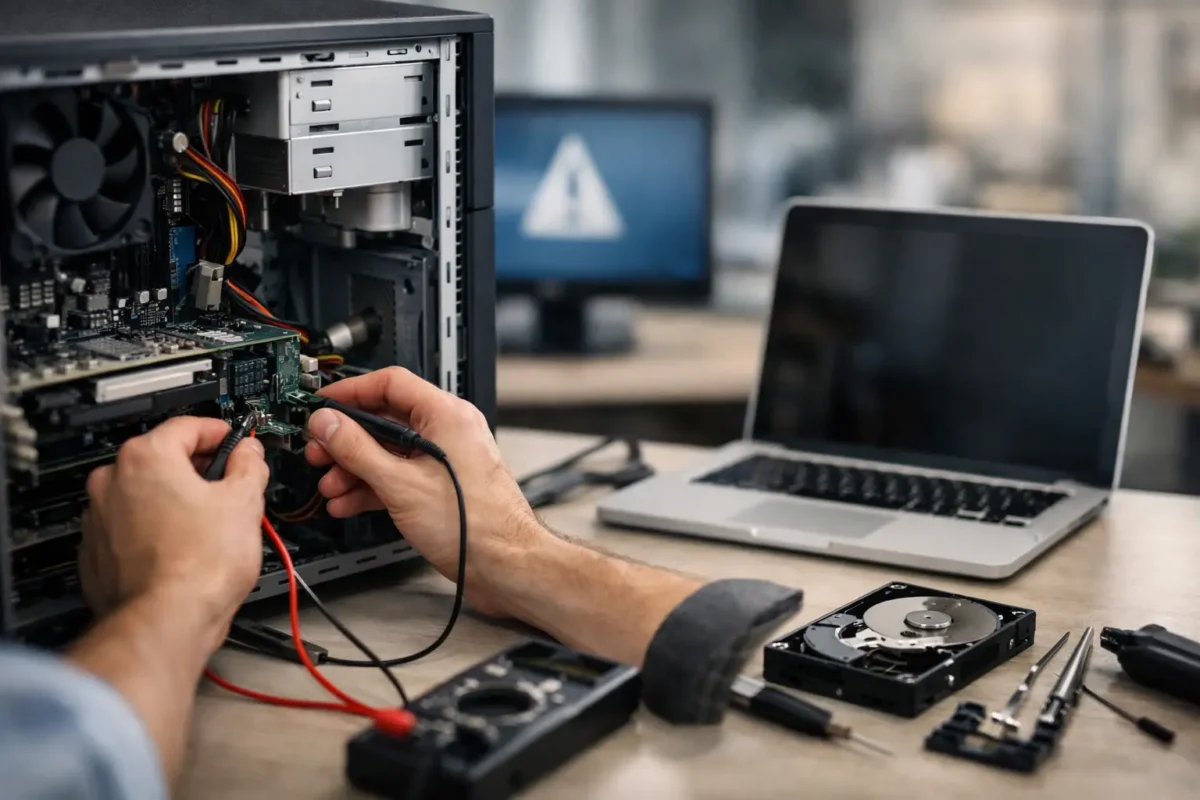
A PC that will not start is not automatically a dead PC. A black screen, endless restart loop, blinking power light, or system that powers on without displaying anything can each point to a very different failure. Effective pc repair for startup failures begins by identifying exactly where the startup process stops – not guessing, replacing random parts, or reinstalling Windows before the hardware has been cleared.
For a work laptop, custom gaming rig, office desktop, or production machine, startup failure can bring everything to a standstill. The right repair approach protects your data, avoids unnecessary cost, and gets to the actual cause before one small fault turns into a larger problem.
PC Repair for Startup Failures Starts With the Symptom
“Won’t boot” is a useful description, but it is not a diagnosis. A computer has to complete several stages before you see a usable desktop: it receives power, initializes core hardware, passes its startup checks, detects a boot device, loads the operating system, and then launches user services. A failure at any stage can look similar from across the room.
A machine with no lights, fan movement, or charging indicator may have a power adapter, battery, DC jack, power supply, fuse, charging circuit, or motherboard power-rail problem. If fans spin but there is no image, the issue may involve RAM, the graphics card, display circuitry, CPU initialization, firmware, or a damaged motherboard.
If the manufacturer logo appears and the system freezes, restarts, shows a blue screen, or reports that no boot device is available, the PC has made it farther through startup. That shifts the investigation toward the storage drive, operating system, boot configuration, failing RAM, overheating, or a driver problem. The distinction matters. Installing a new copy of Windows will not fix a board that cannot initialize memory, and replacing a motherboard will not be the first answer for a corrupted boot loader.
Do Not Turn a Startup Failure Into a Data Loss Event
When a computer stops starting, many people respond by repeatedly forcing it off and on, attempting reset after reset, or using recovery tools without checking the drive condition. That can be risky when important files are still on the system.
If the drive is clicking, disappearing from the BIOS, reporting errors, or causing severe slowdowns before the failure, stop using it. Mechanical hard drives can suffer additional damage while they continue to spin, and SSD failures can become less recoverable as the controller degrades. Data recovery should be considered before an operating system reinstall, partition change, or factory reset.
The same caution applies to BitLocker and other encryption. A repair technician can often restore the PC to working condition, but encrypted data may remain inaccessible without the recovery key. Before authorizing major software changes, locate account credentials, recovery keys, and any current backups if possible.
What a Proper Diagnostic Process Looks Like
A real diagnostic does more than confirm that a PC does not turn on. It isolates the failed stage and tests the components connected to it. This is where experienced repair work separates itself from part swapping.
For a desktop, the technician may test the power supply under load, inspect cables and connectors, clear CMOS settings, verify RAM one module at a time, test with known-good graphics hardware, inspect CPU socket condition, and check the storage device through another system. For laptops, diagnosis can include adapter voltage checks, battery and charging behavior, display output testing, USB-C power-delivery evaluation, thermal inspection, and motherboard rail measurements.
At the board level, technicians look for shorts, missing voltage rails, damaged MOSFETs, failed capacitors, corroded components, broken connectors, and firmware issues. Liquid exposure, power surges, dropped laptops, overheating, and low-quality replacement chargers can all leave evidence that basic software troubleshooting will miss.
This process also prevents waste. A desktop that appears to need a costly motherboard could have a failed power supply. A laptop that seems completely dead could have a damaged charging port or a shorted input component. It depends on the test results, which is why a clear diagnosis should come before a repair recommendation.
Common Startup Failures and What They Usually Mean
A repeated power cycle often points to a hardware initialization issue. RAM is a frequent cause, especially after a system was moved, upgraded, overclocked, or exposed to heat. Poor RAM seating, incompatible settings, a failed module, or a damaged memory slot can keep a PC from reaching the display stage.
A PC that turns on but shows no image may have a simple display connection issue, but it can also involve the GPU, RAM, motherboard, or CPU. On a custom gaming PC, checking whether the monitor cable is connected to the graphics card rather than the motherboard is worthwhile. If that basic check does not solve it, avoid blindly buying a new GPU. The board, PCIe slot, power connectors, or power supply may be responsible.
“Boot device not found” commonly points to storage trouble or boot configuration damage. The drive may be disconnected, failing, or no longer recognized by the BIOS. In other cases, the drive is healthy but Windows startup files are damaged after an update, sudden shutdown, or malware incident.
Blue screens and startup freezes live in the middle ground between hardware and software. A failing SSD, unstable memory, overheating CPU, corrupted system files, driver conflict, or recent hardware upgrade can all cause them. Good repair work tests the hardware before declaring the operating system to be the only problem.
When Board-Level Repair Makes Sense
Many repair shops stop once they identify a motherboard issue and recommend replacement. Sometimes that is the sensible choice, particularly if a compatible board is readily available and the total repair cost is reasonable. But replacement is not always possible or economical, especially for high-end laptops, specialized workstations, compact gaming systems, or machines with difficult-to-source boards.
Board-level repair can be the better path when the fault is localized. Replacing a failed charging IC, power component, fuse, connector, BIOS chip, or damaged trace may restore a system without replacing the entire board. Micro-soldering and PCB repair require the right equipment, technical skill, and measured troubleshooting. They are not DIY jobs with a heat gun and a video tutorial.
Amazing Technology Group handles advanced diagnostics and in-house board repair for failures that many standard shops decline. That matters when a system has real value beyond its resale price – business software, specialized configuration, expensive components, or data that needs a careful recovery plan.
What You Can Safely Check Before Bringing It In
There are a few low-risk checks worth making, as long as you do not open hardware you are not comfortable servicing. Confirm that the outlet and charger work with another device. Disconnect nonessential USB devices, docks, external drives, and accessories. For a desktop, verify that the power supply switch is on and that the cable is seated firmly. For a laptop, try starting it with the charger connected and the battery disconnected only if the battery is designed for safe user removal.
If you recently installed RAM, a graphics card, storage, or a new CPU cooler, retrace that work. A loose power connector, overtightened cooler, incorrectly seated module, or misplaced standoff can prevent startup. Do not continue testing if you smell burning, see smoke, notice swelling in a battery, or find liquid damage. Disconnect power and have the system inspected.
Avoid opening modern laptops just to “see what is wrong.” Internal batteries, fragile display cables, compact connectors, and board-level components are easy to damage. A small broken connector can change a straightforward repair into a more involved one.
A Repair Plan Should Be Clear Before Work Begins
Once the fault is identified, you should know what failed, what repair options are available, the expected cost, and any risk to existing data. A good technician will explain whether the repair is a software correction, component replacement, board-level repair, or data recovery situation. If replacement is the better value, that should be said plainly.
Startup failures are frustrating because they stop everything at once. But the symptom is only the starting point. Leave the random fixes alone, protect the data if it matters, and let a technician trace the failure to the component or software layer that actually needs attention. That is how a PC gets repaired correctly instead of merely powered on for the moment.