

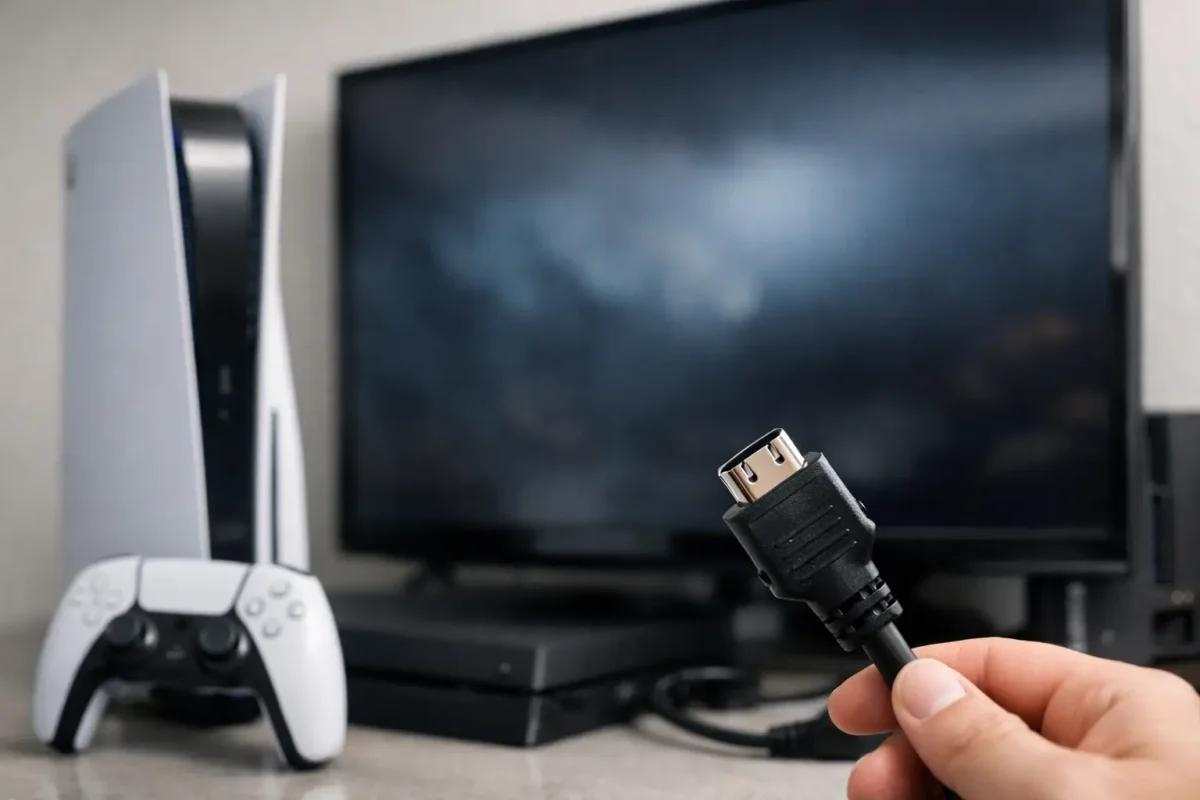
A PS5 that powers on but shows a black screen can turn a simple gaming session into a frustrating guessing game. This guide to PS5 HDMI troubleshooting helps you separate a bad cable or display setting from a damaged HDMI port or a deeper board-level fault. The goal is not to randomly swap parts. It is to test the signal path in the right order, avoid making the damage worse, and know when the console needs real repair work.
Start With the HDMI Signal Path
Your PS5 video signal travels through several points: the console’s HDMI port, the HDMI cable, any receiver or switch in between, and the TV or monitor input. A failure at any point can produce the same symptom: no picture. Start with the easiest external checks before assuming the console is the problem.
Turn the PS5 fully off, then disconnect power for about 60 seconds. Connect the console directly to one known-working HDMI input on the display. Do not test through an AV receiver, HDMI splitter, capture card, wall plate, or switch at this stage. Those devices can introduce handshake problems, especially with 4K, HDR, 120 Hz, and HDCP content protection.
Confirm that the TV is set to the correct input. Then test the same TV input using another device, such as a streaming box or laptop. If that second device also has no picture, the display input may be the issue rather than the PS5.
Use a Cable You Know Works
An HDMI cable can look perfect and still fail under the higher bandwidth demands of a PS5. A cable that works for a basic 1080p device may drop out when the console tries to output 4K HDR at 120 Hz.
Use a short, certified Ultra High Speed HDMI cable if possible. Avoid sharply bent cables, loose connectors, and cables that need to be held at an angle to maintain a picture. If a replacement cable works immediately, you have found the problem without opening anything.
If you need to buy a cable, do not assume the most expensive one is automatically better. The important factor is proper certification and a stable fit at both ends. For a longer run to a wall-mounted TV, cable quality matters even more.
Check the PS5 HDMI Port Carefully
The PS5 HDMI port is one of the most commonly damaged areas on the console. Repeated cable changes, a console falling with a cable connected, or a tight cable pulled sideways can bend internal pins or crack the solder joints holding the port to the motherboard.
With the PS5 powered off and unplugged, shine a light into the port. You are looking for bent or missing pins, a center tongue that appears pushed down, debris, corrosion, or a port that moves when an HDMI cable is inserted. The cable should fit firmly without excessive wobble.
Do not insert tools, toothpicks, metal picks, or compressed-air nozzles into the port. It is easy to bend pins or drive debris farther inside. If lint is visible near the opening, use a soft brush carefully around the exterior edge. A damaged port is not a cleaning project. It requires removal and replacement with the correct equipment.
Symptoms That Point to Physical Port Damage
A physically damaged HDMI port often causes intermittent video before it fails completely. You may see a picture only when the cable is held in a certain position, flashing video, colored sparkles, random signal loss, or a screen that briefly recognizes the PS5 and then goes black.
A loose port is especially significant. The connector may have broken solder pads beneath it, not just damaged pins inside it. Replacing the port without inspecting the board can leave hidden trace damage unaddressed. That is why a proper repair involves inspection under magnification, continuity testing, and verification of the HDMI circuit after the new port is installed.
Reset Video Output in Safe Mode
If the HDMI port and cable appear sound, the PS5 may be trying to send a display mode your TV or monitor does not support. This commonly happens after moving the console to a different screen, changing 4K settings, or using a receiver with limited HDMI capabilities.
To reset the video output, turn the console off completely. Press and hold the power button until you hear the second beep, usually about seven seconds after the first. Connect a controller to the PS5 with a USB data cable, then select the Safe Mode option to change video output or reset the video resolution.
If Safe Mode appears, set the resolution to Automatic or a lower supported setting and restart the console. You can then work back up to 4K, HDR, VRR, or 120 Hz one setting at a time. This approach identifies whether a specific display feature is causing the failure.
If you cannot see Safe Mode on a display that works with other devices, do not keep cycling power or repeatedly forcing the cable. At that point, the issue may be the console’s HDMI hardware rather than a software setting.
Rule Out Display, HDCP, and Handshake Issues
A PS5 can have video output but still fail to establish a stable connection with a particular TV, monitor, receiver, or capture setup. This is usually called an HDMI handshake issue. It is more common when multiple devices sit between the console and the screen.
Test the PS5 directly on a second display if you can. A basic TV or monitor is often the best diagnostic tool because it removes advanced settings from the equation. If the PS5 works on another display, inspect the original display’s HDMI settings. Some TVs require an option such as Enhanced Format, Input Signal Plus, or 4K Enhanced to properly accept higher-bandwidth signals.
HDCP can also affect capture cards and certain receivers. If you have picture directly on a TV but not through your recording or audio setup, the PS5 may be working normally. The accessory chain needs troubleshooting, not the console.
For a clear test sequence, work through these four steps:
- Connect the PS5 directly to a known-working display.
- Test with a known-good, short HDMI cable.
- Boot into Safe Mode and reset the video output.
- Test the console on a second display before suspecting internal failure.
When the Problem Is More Than the HDMI Port
Not every PS5 no-signal problem is caused by the port itself. The HDMI encoder, retimer, filters, ESD protection components, or surrounding motherboard traces can fail. Liquid exposure, electrical surges, previous improper repairs, and impact damage can all affect this part of the circuit.
This is where part-swapping stops being a real diagnosis. A new HDMI port will not repair a failed encoder IC or a shorted protection component. In some cases, installing a port without testing the surrounding circuit can cause the replacement port to fail or leave the customer with the same black-screen symptom.
Board-level diagnosis uses measurements and inspection to find where the signal is being interrupted. A qualified technician checks the port, pin continuity, filters, diode arrays, data lines, power rails, and HDMI ICs before recommending a repair. That process takes more skill than simply replacing a connector, but it prevents unnecessary work and gives the console a better chance of a lasting repair.
Avoid These Common Mistakes
Do not force an HDMI cable into a port that feels misaligned. Do not keep wiggling a loose cable to get one more session out of the console. Every movement can lift pads and damage traces beneath the connector.
Avoid attempting a heat-gun repair based on a quick video tutorial. HDMI ports are surrounded by small surface-mount components, and uncontrolled heat can warp the connector, dislodge nearby parts, damage the board, or create failures that were not present before. The same applies to trying to reflow an HDMI chip without proper diagnosis.
It is also smart to protect your save data before sending the console out for service when possible. If the system still boots and can be accessed remotely or through a temporary display setup, back up what you can. A video issue does not automatically mean storage data is at risk, but good backup habits are worth keeping.
Get a Real Diagnosis Before Replacing the Console
A PS5 with no HDMI output is not automatically a dead PS5. Many cases are resolved with a cable, a video reset, or a properly performed port repair. More difficult cases may need component-level board work, but those are still repairable when the diagnosis is thorough and the work stays in capable hands.
Amazing Technology Group handles PS5 HDMI issues with in-house diagnostics and board-level repair, rather than treating a difficult signal fault as a reason to replace the entire console. If your cable and display tests check out but the PS5 still has no picture, stop forcing the connection and have the HDMI circuit inspected. A careful diagnosis can turn a black screen back into a working console without wasting money on the wrong fix.