

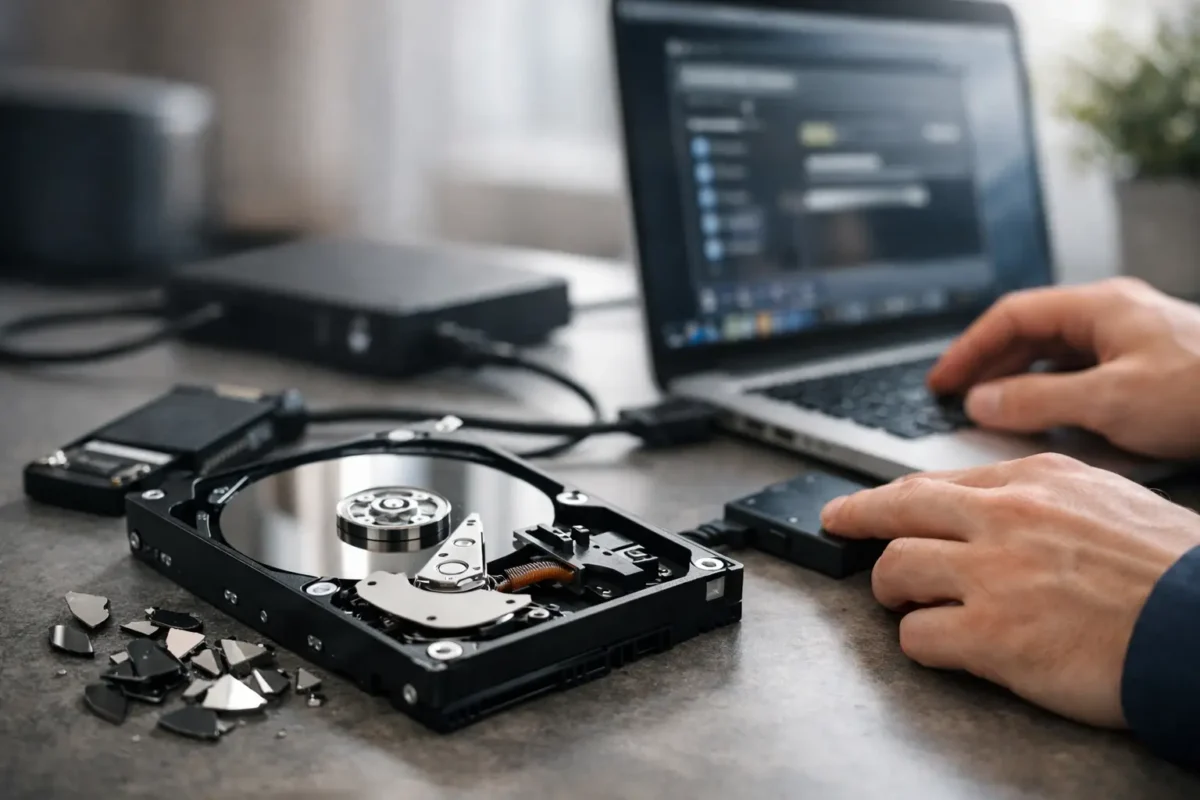
A drive that suddenly asks to be formatted, disappears from File Explorer, or reports that its files are unreadable creates one immediate problem: every wrong move can make recovery harder. If you are searching for how to recover corrupted drive data, start by protecting what remains. Do not keep rebooting, do not install recovery software onto the affected drive, and do not approve a format just to make the warning go away.
Drive corruption can be a simple file-system issue, or it can be the first visible symptom of failing hardware. The difference matters. A logical problem may be repairable with careful software work. A drive with physical damage needs a controlled diagnostic process before more data is lost.
First, Stop Writing to the Drive
The safest first step is simple: stop using the drive. Any new download, application install, game update, or copied file can overwrite data that recovery tools may otherwise be able to retrieve.
If the corrupted drive is your computer’s internal system drive, shut the machine down instead of repeatedly trying to boot it. If it is an external drive, disconnect it properly and set it aside. Avoid opening the drive enclosure, tapping the drive, freezing it, or trying internet repair tricks that promise a quick fix. Hard drives and solid-state drives fail in different ways, but both can be pushed from recoverable to unrecoverable by unnecessary use.
Before attempting a repair, identify what kind of drive you have. A traditional hard disk drive uses spinning platters and is especially vulnerable to mechanical damage. An SSD uses flash memory and a controller, so it may fail without noise or warning. USB flash drives and memory cards have their own failure patterns, often involving damaged connectors, failing flash chips, or corrupted file tables.
How to Recover a Corrupted Drive: Identify the Failure Type
A corrupted drive is not always a dead drive. The symptoms help determine whether you are dealing with logical corruption, hardware failure, or a connection problem.
Logical corruption often appears after an improper shutdown, a power outage, malware infection, interrupted file transfer, or accidental formatting. The drive may still show up with its correct capacity, but Windows may display errors such as “You need to format the disk,” “The file or directory is corrupted and unreadable,” or a RAW partition instead of NTFS or exFAT.
Physical failure has different warning signs. A hard drive that clicks, beeps, spins up and down, disappears intermittently, takes an unusually long time to open folders, or causes the computer to freeze should be treated as a hardware-risk case. An SSD that vanishes from the BIOS, reports an incorrect capacity, or repeatedly disconnects can also have a controller or board-level issue. In these situations, software scans can add stress without producing useful results.
Connection problems can look like corruption too. Test an external drive with a known-good cable, another USB port, and, if possible, another computer. For desktop internal drives, a technician can test the SATA data cable, power connection, enclosure, dock, or USB bridge board. This is worth checking, but do not confuse a successful connection test with a license to keep using a failing drive.
Make a Safe Copy Before Repairing Anything
If the drive is stable enough to be read, the best practice is to create a sector-by-sector image or clone before running repairs. This creates a working copy so recovery efforts do not continue stressing the original device.
A clone is especially valuable when a hard drive has bad sectors or reads slowly. Standard file copying may stop when it hits one damaged area, while a proper imaging process can work around errors, capture readable sectors first, and document what could not be read. The original drive is then preserved for further work if needed.
This step requires the right equipment and judgment. A drive that is clicking, overheating, or disconnecting may not be safe to clone at home. Continuing to power it on can worsen platter damage on a mechanical drive. For SSDs, repeated power cycles may trigger further controller instability or reduce access to unstable flash translation data.
Use Software Repair Only When the Drive Is Stable
If the drive is detected consistently, is not making unusual sounds, and the files are not critical enough to justify immediate professional handling, software recovery may be reasonable. Start with the least invasive option: copy accessible files to a separate healthy drive. Prioritize documents, photos, project files, business records, and anything that cannot be replaced.
After data is copied or an image is made, you can assess file-system repair options. Windows tools can sometimes correct directory and file-system errors, but repair utilities modify the drive. They are not recovery tools, and they can remove damaged file references in the process. Running a repair command before copying data may make a recoverable situation worse.
Recovery software can scan a cloned image or stable drive for deleted partitions, lost file structures, and recognizable file signatures. Results vary. If the original folder structure is intact, recovery may be clean. If the file table is heavily damaged, recovered files may have generic names, missing metadata, or partial content. Large video files, databases, and game project files are particularly vulnerable to fragmentation, meaning their pieces may not be easy to reassemble.
Do not save recovered files back to the corrupted drive. Use a separate drive with enough free space. Saving data to the source can overwrite the very sectors that still contain recoverable information.
When DIY Recovery Should Stop Immediately
There are situations where stopping is the most cost-effective decision. A professional recovery service is strongly recommended if the drive contains irreplaceable family photos, business financial records, customer data, production files, or evidence needed for legal or insurance purposes.
Stop DIY attempts if you notice any of these signs:
- Clicking, grinding, beeping, or repeated spin-up and spin-down from a hard drive
- A drive that is not detected in BIOS, Disk Management, or another known-good system
- Burning smell, visible board damage, water exposure, or a damaged USB connector
- Extremely slow reads, repeated disconnections, or system freezes when the drive is attached
- An SSD showing zero capacity, a wrong capacity, or sudden complete inaccessibility
These symptoms often require more than a software scan. The issue may involve mechanical components, damaged power circuitry, a failed controller, degraded NAND flash, or a problem with the drive’s firmware. Proper recovery can require controlled imaging hardware, component-level diagnostics, board repair, donor parts, or advanced data reconstruction.
What a Real Diagnostic Process Looks Like
Good data recovery starts with diagnosis, not guesses. The goal is to determine whether the failure is logical, electrical, mechanical, firmware-related, or caused by the host computer itself.
At Amazing Technology Group, difficult storage cases are approached with that same repair-first mindset used for computers and board-level electronics. The drive, enclosure, cables, power path, and host system should all be evaluated before anyone recommends a repair path. That prevents customers from paying for unnecessary replacement parts or risking their data with a one-size-fits-all software solution.
For a logical failure, the practical path may be imaging the device and recovering files from the image. For an electrical fault, board-level work may restore enough communication to extract data. For mechanical hard-drive damage, recovery may require a specialized environment and equipment beyond normal shop repair. Honest diagnosis includes knowing where the line is and choosing the method that gives the data the best chance.
Prevent the Next Corruption Event
Once the data is recovered, do not put it right back onto the same questionable drive. Replace a failing drive, then keep at least two copies of important files on separate devices. For businesses, backup planning should include tested restore procedures, not just a backup folder nobody has verified.
Use a surge protector or battery backup for desktop systems, shut computers down properly, and avoid disconnecting external drives during transfers. Monitor aging drives for slow performance, recurring file errors, and unexpected disconnections. A backup made before failure is always cheaper and faster than emergency recovery after failure.
The right next move is not always a repair command. If the drive is stable, preserve the data first and work from a copy. If it is making noise, disappearing, or holding data you cannot afford to lose, power it down and get a real diagnosis before another attempt turns a damaged drive into a permanent loss.