Computer Repair - Game Console Repair - Electronics Repair - Micro Soldering | !!! Now Open from 8am to 10pm Mon - Thurs =) !!!

Categories
Uncategorized

How to Diagnose Console Overheating

A console that sounds like a jet engine, throws heat out the vents, or shuts down in the middle of a match is not just running hot – it is telling you something specific. Knowing how to diagnose console overheating starts with separating normal heat from a real fault, because modern systems do run warm under load. The goal is not to guess. It is to identify whether the problem is airflow, fan control, thermal transfer, power delivery, or a deeper board-level issue.

What overheating actually looks like

Not every warm console is overheating. A PS5 or Xbox Series X can exhaust very hot air and still be operating normally if internal temperatures stay within spec. Real overheating usually shows up as a pattern: sudden shutdowns after 10 to 40 minutes, thermal warnings on screen, loud fan behavior that ramps hard and stays there, severe performance throttling, or heat concentrated in one area of the chassis.

The timing matters. If the console overheats only during demanding games, the issue may be reduced cooling efficiency rather than a total fan failure. If it overheats even at the menu or during updates, the fault is usually more serious. That points toward blocked airflow, failed thermal contact, sensor problems, or power circuitry generating excess heat.

Start with the environment before opening anything

A proper diagnosis begins outside the console. Placement causes more problems than most people expect. If the unit is inside a tight entertainment center, pressed against a wall, sitting on carpet, or covered in dust, you may be looking at restricted airflow rather than an internal defect.

Move the console into an open area with several inches of clearance on all vented sides. Power it off fully, let it cool, and inspect the vents with a light. If you see dust packed into the intake or exhaust path, that alone can raise temperatures enough to trigger shutdowns. The same goes for pet hair, smoke residue, and oily buildup, which can trap heat and stick to the heatsink.

Then pay attention to room conditions. High ambient temperature makes a marginal cooling system fail faster. A console that behaves fine in a cool room but overheats in a hot upstairs bedroom is still showing a cooling weakness, even if the environment is helping expose it.

How to diagnose console overheating by symptoms

The fastest way to narrow the fault is by matching symptoms to likely causes. That is how experienced repair techs avoid replacing the wrong parts.

If the fan is extremely loud from startup, the system may be detecting heat correctly but struggling to remove it. Dust-clogged heatsinks, dried thermal paste, warped pressure contact, or partially obstructed airflow are common here. If the fan is quiet or inconsistent while the console gets dangerously hot, that suggests fan failure, fan control issues, a damaged connector, or sensor reporting problems.

If shutdowns happen only under heavy graphics load, suspect poor heat transfer from the processor to the cooler. If the console powers off randomly with little warning and the chassis is not especially hot overall, the issue may be on the power side instead. A failing power supply, VRM issue, or damaged board component can create heat in a localized area and mimic classic overheating.

That distinction matters. Real diagnostics are about identifying where the heat starts, not just where you feel it.

Check fan behavior and airflow first

Before assuming the worst, verify the basics. With the console powered on, listen for fan startup. Most systems should show some fan activity during boot or shortly after. Hold your hand near the exhaust. You should feel steady airflow, not weak pulses or almost nothing.

A fan can fail completely, but partial failure is common too. Worn bearings, damaged blades, dust imbalance, or low voltage to the fan can reduce cooling long before the fan stops spinning entirely. Grinding noise, chirping, or fan speed surging up and down are all warning signs.

If airflow is weak but the fan sounds like it is working hard, the heatsink may be packed with debris. On many consoles, dust collects deeper inside than the outer vents suggest. A clean exterior does not always mean a clean cooling path.

Thermal paste and heatsink contact are common failure points

Older consoles and heavily used systems often develop poor thermal transfer between the processor and the heatsink. Thermal paste dries out, pump-out happens over time, and mounting pressure can become uneven. When that happens, the chip heats up fast, the fan ramps aggressively, and shutdowns start showing up during gameplay.

This is one of the most misdiagnosed issues because people assume any heat problem is just dust. Sometimes it is. Sometimes the console is clean and still overheating because heat is no longer moving efficiently into the cooler.

The trade-off is that opening the console to inspect paste and heatsink contact carries risk. Some systems are straightforward. Others are easy to damage if you are not used to delicate ribbon cables, shielding, or pressure assemblies. If the symptom pattern points here and the console is valuable, this is where many owners are better off having it inspected by a repair shop that does real internal diagnostics instead of guessing.

When overheating is really a power or board issue

This is where experience matters. Not every overheating complaint is a cooling problem. We see consoles where a power rail runs hot due to failing MOSFETs, regulators, shorted capacitors, or stressed solder joints. In those cases, replacing paste or cleaning fans will not fix the root cause.

Board-level faults often show a different pattern. The console may shut down unpredictably, overheat faster than expected, fail to regulate fan speed properly, or develop one abnormally hot zone on the motherboard. Sometimes the system log or error history points to thermal events, but the real issue is unstable power delivery creating excess heat near the CPU, GPU, or VRM section.

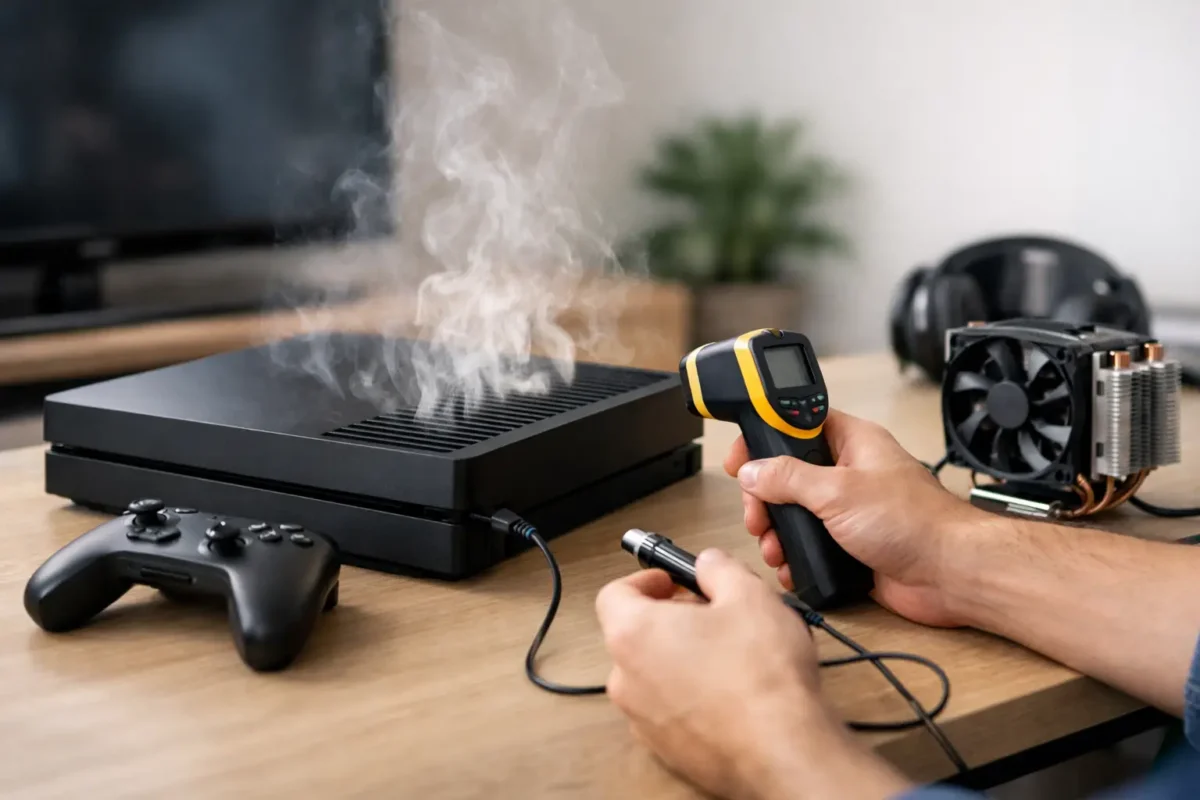
That is why temperature symptoms should not be treated as proof of one specific part failure. A proper diagnosis may involve checking fan voltage, measuring current draw, inspecting thermal surfaces, and using thermal imaging or targeted probing to find hotspots. That is the difference between repair and parts roulette.

Console-specific patterns to watch

Different models fail in different ways. PS4 systems are well known for heavy dust buildup and dried thermal material, especially after years of use. A PS4 that gets loud immediately and starts throwing overheating warnings often needs more than a surface cleaning.

PS5 systems can also run hot, but the layout is different and diagnosis should account for liquid metal condition, fan contamination, vent blockage, and power section behavior. Xbox One and Xbox Series models can show overheating through abrupt shutdowns, error messages, or aggressive fan response, but similar symptoms can still come from different root causes.

The key point is this: model knowledge speeds up diagnosis, but it should not replace testing. Two consoles with the same symptom can fail for completely different reasons.

Safe checks you can do at home

If you want to know how to diagnose console overheating without making things worse, stay with non-invasive checks first. Test the console in a well-ventilated area. Listen to fan behavior during idle and during a game. Feel for consistent exhaust airflow. Note how long it takes for the problem to appear and whether it happens only under load.

Also check for dust at visible vents, confirm that no external accessories are blocking airflow, and make sure the power supply area is not being smothered by clutter. If the issue improves noticeably after moving the console and cleaning the exterior vents, you may have caught it early.

What you should avoid is blowing debris deeper into the console with uncontrolled compressed air, running the unit half-disassembled without understanding airflow paths, or replacing parts based on internet guesses. Those shortcuts often turn a heat complaint into a bigger repair.

When to stop troubleshooting and get it professionally diagnosed

If the console is shutting down repeatedly, showing overheating warnings, making unusual fan noise, or staying hot after basic cleaning and repositioning, it is time for a proper bench diagnosis. The same goes for any system that was recently dropped, had liquid exposure, or was previously worked on by someone else.

A qualified repair shop should be able to tell you whether the problem is maintenance-related, part-related, or board-related. That matters because the repair path and cost can be very different. A fan replacement is not the same job as rebuilding damaged traces or addressing a power section fault.

At Amazing Technology Group, this is exactly where in-house diagnostics make a difference. When a console overheats, the real job is not just getting it cooler for a day. It is finding out why it is running hot and fixing the failure at the right level.

Heat is a symptom, not a diagnosis. If you treat it that way, you have a much better chance of saving the console and avoiding unnecessary replacement.
Categories
Uncategorized

Riverside Laptop Repair That Goes Deeper

A laptop that suddenly stops charging, overheats without warning, or dies after a spill rarely needs guesswork. It needs real diagnosis. That is what separates basic Riverside laptop repair from the kind of repair work that actually saves machines people rely on for school, work, gaming, and business.

A lot of shops start and stop with the obvious. If the screen is cracked, they replace the screen. If the drive is dead, they replace the drive. That works for straightforward damage, but plenty of laptop failures are not straightforward. Power faults, charging issues, liquid damage, no-display conditions, random shutdowns, bad USB ports, BIOS problems, and board damage often get misread as total loss. In many cases, the real issue is smaller, more specific, and repairable.

That matters if you are trying to avoid replacing an expensive system, recover important data, or keep a business machine in service without unnecessary downtime.

What good Riverside laptop repair actually looks like

A proper repair process starts with diagnosis, not assumptions. If a laptop will not power on, there are several possible causes. The battery may be failing. The DC jack may be damaged. A charging circuit on the motherboard may have failed. A shorted component may be preventing power-up. Sometimes the issue is simple. Sometimes it is board-level.

Without testing, every one of those problems can look the same from the outside.

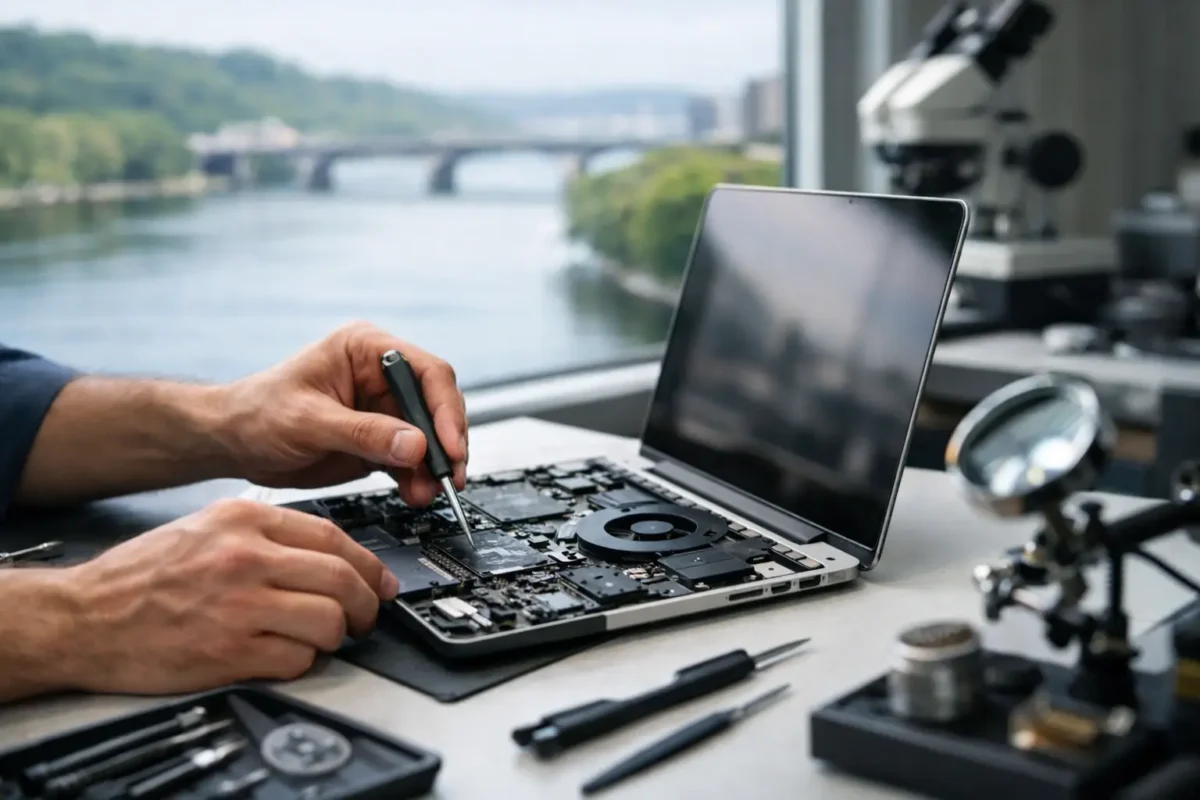
That is why experienced technicians work from symptoms to root cause. They check the power path, inspect for physical damage, test memory and storage, verify thermal behavior, and look for signs of component failure on the board itself. If the laptop suffered liquid damage, they do not just dry it off and hope for the best. They inspect corrosion, clean affected areas properly, and determine whether the damage reached charging, backlight, or data circuits.

This approach usually saves customers money because it avoids replacing parts that were never the issue in the first place. It also improves the odds of a stable repair instead of a temporary patch.

The difference between part swapping and board-level repair

This is where many repair experiences split in two.

Part swapping has its place. If a keyboard is physically broken, replacing it makes sense. If a screen is cracked, a new panel is often the right answer. But when a shop treats every laptop problem as a replace-the-big-piece problem, costs climb fast and viable machines get written off too early.

Board-level repair is different. Instead of replacing the entire motherboard because the laptop will not charge, a skilled technician may identify a failed charging IC, damaged DC input section, blown fuse, shorted capacitor, or corrosion around a key circuit. Replacing the specific failed component can restore the machine at a fraction of the cost of a full board replacement, if replacement is even available.

There is a trade-off. Board repair takes technical skill, the right tools, and time spent diagnosing. It is not a shortcut. But for higher-end laptops, business systems, gaming machines, and devices with hard-to-source boards, that extra effort can be the difference between recovery and replacement.

Common laptop problems that need deeper diagnosis

Some laptop issues are obvious the moment you see them. Others hide behind vague symptoms.

A machine that powers on but shows no image could have a bad screen, failed backlight circuit, RAM issue, GPU fault, BIOS corruption, or motherboard damage. A laptop that runs hot may need more than fan cleaning. It could have a failing heat pipe, worn thermal compound, sensor issues, or a power regulation problem driving temperatures higher than normal. A battery that will not charge may not be a battery problem at all.

Liquid damage is another category where surface-level repairs fall short. Even a small spill can migrate into connectors, under chips, and across power rails. The laptop may seem fine at first, then fail days later as corrosion spreads. Fast action helps, but thorough inspection matters more than optimism.

Data concerns also change the repair strategy. If the laptop contains business files, creative work, accounting records, or family photos, preserving the drive and protecting recoverable data becomes part of the job. Sometimes the main goal is full restoration. Other times, the smartest move is securing data first and then deciding whether hardware repair makes financial sense.

Who benefits most from specialized laptop repair

Not every customer walks in with the same priorities.

Students usually need their system back without paying replacement-level prices. Remote workers need reliability because downtime hits paychecks. Gamers want thermal and performance issues fixed correctly, not covered up with a quick fan blast. Small businesses need a repair partner that understands urgency, data sensitivity, and the real cost of having a key employee without a working machine.

Then there are customers who have already been told no somewhere else. Those are often the best candidates for deeper diagnostics. If a laptop was declined because the motherboard is “bad,” that should not automatically be the end of the story. It may be beyond economic repair, but it may also be a targeted board fault that a better-equipped shop can handle in-house.

That in-house part matters. When diagnostics and board work stay under one roof, communication is cleaner, turnaround is easier to manage, and there is less finger-pointing if the failure is complex.

What to expect from the repair process

A strong repair experience is not just about technical skill. It is also about being clear with the customer.

The process should start with intake and symptom review. What happened before the failure? Was there a drop, spill, update, surge, or charging issue? Those details help narrow the problem faster. After that comes diagnosis. The technician confirms what is failing, what caused it, and what repair paths are realistic.

Once the issue is identified, the customer should get a plain-English explanation. Not everyone needs the schematic-level version. They do need to know whether the problem is minor, major, urgent, or likely to return because of underlying damage. They should also know whether the repair is a component-level fix, a replacement part job, a data-priority case, or a situation where replacement may be the smarter investment.

Approval comes next. No one likes surprise repair bills. Good shops explain the scope, quote the work, and wait for authorization before moving forward.

Then comes the actual repair, followed by testing. That final testing step matters more than people realize. A laptop that powers on once is not the same as a laptop that charges properly, runs at safe temperatures, recognizes all ports, holds stability under load, and returns to normal operation.

Why local service still matters

Mail-in repair has its place, especially for uncommon or advanced failures. But for many people in Riverside County, local service adds speed and peace of mind.

You can explain the symptoms directly. You can ask questions. If the machine is tied to your job or your business, there is real value in working with a team that understands urgency and can look beyond a canned checklist. Local support also makes follow-up simpler if the issue turns out to be part of a larger hardware problem.

For business clients, this matters even more. A laptop problem is rarely just one broken device. It can affect access, productivity, backups, software licensing, and network workflow. A repair provider with broader technical depth can spot those ripple effects before they become bigger problems.

That broader capability is where a company like Amazing Technology Group stands out. When a laptop problem reaches board level, power circuitry, data risk, or more advanced diagnostics, the work is handled like an engineering problem, not a retail transaction.

When repair is worth it and when it is not

Honest repair advice includes saying no when no is the right answer.

If the laptop is low-value, heavily damaged, and likely to need multiple major parts, replacement may be the smarter call. If the motherboard is repairable but the screen, battery, and hinge assembly are also failing, the numbers may stop making sense. On the other hand, if the machine is a premium laptop, a specialized workstation, a business-critical system, or a gaming unit with good specs, repair often makes far more sense than starting over.

Age matters, but not as much as people think. A well-built laptop with a specific board fault may still be worth repairing. A newer budget model with widespread damage may not be. The right answer depends on value, condition, parts availability, and what the customer needs from the machine after repair.

That is why real diagnosis comes first. It keeps decisions grounded in facts instead of guesswork.

If your laptop matters, do not settle for a repair process built on assumptions. The best fix is not always the fastest guess or the biggest replacement part. Sometimes it is the careful, skilled work that gets to the actual failure and brings the machine back for the right reason.

Categories
Uncategorized

7 Top Causes of Laptop Crashes

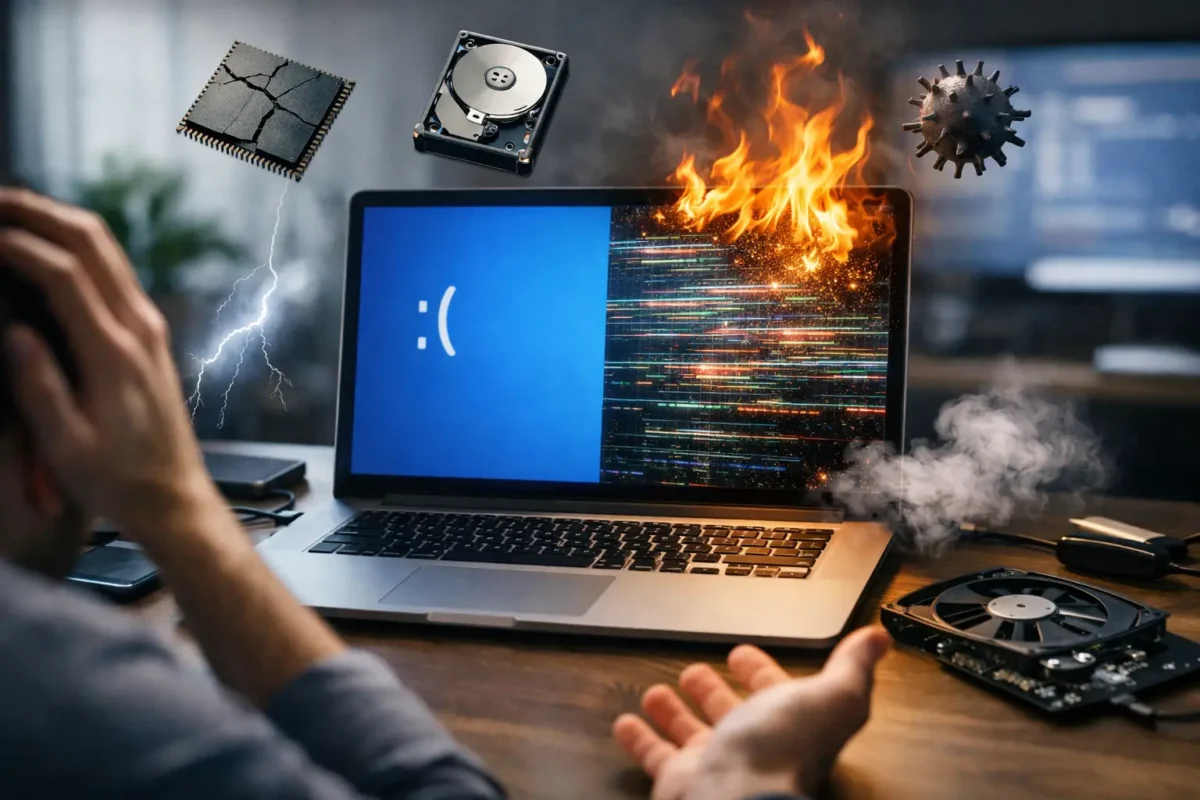
A laptop that crashes once during a big update is annoying. A laptop that crashes while you’re working, gaming, exporting files, or handling business tasks is a warning sign. The top causes of laptop crashes usually fall into a short list of software, thermal, storage, memory, power, or board-level faults, and the trick is knowing which one you’re actually dealing with before the problem gets worse.

A lot of people get stuck because every crash looks the same from the outside. The screen freezes, the system reboots, apps stop responding, or Windows throws a blue screen. But the root cause can be completely different. That is why proper diagnosis matters. Guessing leads to wasted money, random part replacement, and laptops that keep failing.

Top causes of laptop crashes and what they look like

Some crashes point clearly to software. Others are classic signs of hardware stress. In many cases, the symptoms overlap, which is why a methodical approach beats trial and error.

Overheating under load

Heat is one of the most common reasons laptops become unstable. Unlike desktops, laptops have limited airflow, compact cooling systems, and very little room for dust buildup before performance starts to drop. Once internal temperatures get too high, the system may freeze, throttle hard, shut down, or reboot to protect the CPU and GPU.

This tends to show up during gaming, video editing, large file transfers, or even long video calls. If the fan runs constantly, the bottom panel gets unusually hot, or crashes happen more often after the machine has been on for a while, overheating is a serious suspect.

The cause is not always just dust. Dried thermal paste, a failing fan, warped heatsink contact, or a board issue affecting fan control can create the same symptom. That is where real inspection matters. Cleaning helps in some cases, but not every thermal problem is a maintenance problem.

Failing storage drives

A dying SSD or hard drive can cause random crashes that people often mistake for bad RAM or a virus. When the laptop cannot reliably read or write system files, Windows may lock up, fail to boot, corrupt updates, or crash during ordinary tasks.

Traditional hard drives usually give more warning. You may notice slow boot times, clicking sounds, file errors, or folders that take forever to open. SSDs can be less obvious. They often fail in a way that looks sudden, with freezing, blue screens, or a machine that starts but becomes unstable fast.

Storage issues are especially important because they can turn into data loss. If the laptop is crashing and also acting slow, hanging during startup, or reporting repair errors, continuing to use it heavily can make recovery harder.

Bad or unstable memory

RAM problems are high on the list of top causes of laptop crashes because faulty memory affects almost everything the system does. If the laptop writes bad data to memory or cannot read it back correctly, the operating system may crash without much warning.

Memory-related crashes can happen during multitasking, game launches, browser use with many tabs open, or even at idle. Blue screens with changing error codes are common. So are apps that close unexpectedly for no clear reason.

Here is the catch: not every memory problem means the RAM stick itself is bad. The slot can be damaged, the board can have cracked solder joints, or a power rail feeding memory can be unstable. That is why swapping modules blindly does not always fix the issue.

Software problems that trigger hard crashes

Not every crash means hardware failure. A healthy laptop can still become unstable if the software stack is damaged, outdated, or fighting itself.

Corrupt operating system files or bad updates

Windows updates, driver installs, and interrupted shutdowns can leave the operating system in a bad state. When critical files are corrupted, the laptop may boot into repair loops, crash at login, or fail during normal use.

This is one of the more fixable causes, but it still requires careful work. If you jump straight to reinstalling the OS without checking drive health first, you may miss the real problem. A reinstall on a failing SSD may work for a day and then crash all over again.

Driver conflicts and firmware issues

Graphics drivers, chipset drivers, Wi-Fi drivers, and BIOS or firmware problems can all cause repeated crashes. This is common after major OS updates, hardware changes, or attempts to use generic drivers on specialized laptops.

Gaming laptops are especially vulnerable here because they rely on coordination between integrated graphics, dedicated graphics, power management, and thermal control. If one layer is unstable, you can get black screens, reboots, or lockups that seem random.

Firmware problems are often overlooked because they sit below the operating system. A bad BIOS setting, failed update, or unstable power delivery on the board can create crashes that look like software until deeper testing proves otherwise.

Malware and bloated background processes

Malware does not always announce itself dramatically. Sometimes it just chews up system resources, interferes with processes, or damages files until the laptop becomes unstable. Even without malware, overloaded startup items, junk utilities, and poorly written security tools can push an already aging system into repeated crashes.

That said, software clutter usually makes an underlying weak point worse rather than causing every crash by itself. If the laptop crashes even after a clean startup or fresh install, the issue is probably deeper.

Hardware faults people miss

This is where many repair attempts go sideways. A laptop may appear to have a software issue, but the real cause is on the board, in the charging circuit, or in the power path.

Battery and power delivery problems

If the battery is failing, swollen, or no longer regulating voltage properly, the laptop can shut down or reboot unexpectedly. The same goes for bad chargers, damaged DC jacks, and failing power management components on the motherboard.

One clue is when the laptop behaves differently on battery versus charger power. Another is when slight cable movement causes charging to cut in and out. In more advanced cases, the machine may crash only when the CPU or GPU draws more current.

That is not a settings problem. That points to unstable power delivery, and it needs proper electrical diagnosis.

Motherboard damage and board-level faults

A motherboard issue is one of the most serious entries on any list of top causes of laptop crashes. Liquid damage, failed capacitors, damaged MOSFETs, bad solder joints, chipset problems, and shorted components can all create intermittent or constant instability.

This is why some laptops crash no matter how many times the OS is reinstalled. If the board is failing, software fixes will not hold. The machine may pass one test and fail the next. It may crash only when warm, only when moved, or only during high power demand.

These faults are often missed by shops that only replace obvious parts. Real board-level testing can separate a bad motherboard from a repairable circuit problem, which can save the device and reduce replacement cost.

How to tell when a crash is becoming a bigger problem

Repeated crashes are bad enough, but certain warning signs mean you should stop pushing the laptop and get it checked. If the system is blue-screening more often, freezing during boot, showing display corruption, failing to detect storage, or shutting down under load, the failure may be progressing.

Data risk should also change how you respond. If the laptop contains business records, school work, creative projects, or anything you cannot replace, backup should come before experimentation. Every hard reboot, forced restart, and repeated boot attempt can make recovery harder if the drive or board is already unstable.

What a proper diagnosis should include

A good diagnosis does more than confirm that the laptop crashed. It isolates why. That means checking temperatures, storage health, memory stability, event logs, driver behavior, charging performance, and motherboard condition instead of assuming the first symptom tells the whole story.

Sometimes the fix is straightforward – remove malware, repair the OS, replace a fan, or install stable drivers. Sometimes it is more technical – replacing a failing SSD, correcting a power rail fault, repairing board damage, or addressing a memory circuit issue. It depends on what the machine is actually doing under test, not on what the internet says is most common.

That is the difference between troubleshooting and guessing. At Amazing Technology Group, this kind of failure is exactly why in-house diagnostics matter. If a laptop is crashing because of a board-level defect, a serious thermal problem, or unstable power delivery, you want a repair path built on evidence, not shortcuts.

If your laptop crashes once, monitor it. If it crashes repeatedly, treat it like a hardware or data problem until proven otherwise. The sooner the real cause is identified, the better your odds of saving both the machine and what is on it.