A graphics card rarely fails with a clean warning label. One day a game may crash after 20 minutes. The next day, your screen may fill with colored blocks, go black under load, or refuse to display anything at all. Knowing the top symptoms of GPU failure helps you stop guessing, protect the rest of the system, and avoid replacing a good card because the real problem was power, heat, software, or the display chain.
For gamers, creators, and businesses relying on workstations, the key is recognizing patterns. A GPU issue that appears only during a demanding game points to a different set of causes than a computer that cannot reach the BIOS screen.
The Top Symptoms of GPU Failure
Artifacts, visual corruption, and strange colors
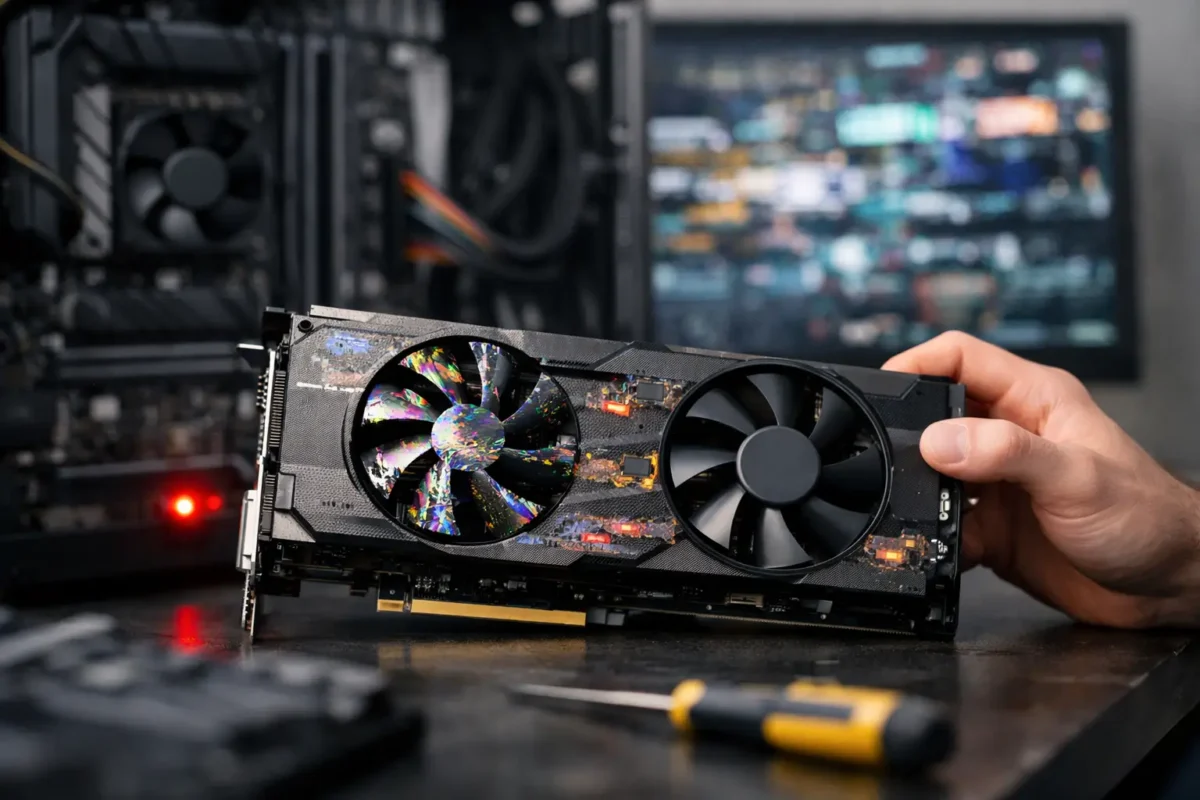
Artifacts are among the clearest warning signs. You may see flashing squares, random dots, checkerboard patterns, colored lines, textures that stretch across the screen, or geometry that breaks apart in games and 3D applications. Sometimes the image looks normal at the desktop but becomes corrupted as soon as the GPU is put under load.
Artifacts can come from failing video memory, a damaged GPU core, overheating, or unstable overclock settings. They can also come from a bad DisplayPort or HDMI cable, a loose connection, or a failing monitor. Before condemning the card, test with another known-good cable and display. If the corruption appears in screenshots or screen recordings, however, the problem is more likely occurring inside the PC rather than at the monitor.
Black screens during gaming or rendering
A sudden black screen is frustrating because the computer may still be running. Fans can remain on, audio may continue, and the keyboard may still respond, but the monitor loses signal. This often happens when a game starts, during a benchmark, or while exporting video.
The GPU is a possible cause, but black screens are not a diagnosis by themselves. An aging power supply, loose PCIe power connector, unstable RAM, driver crash, overheating, or motherboard issue can create the same symptom. Pay attention to when it happens. A black screen only when the card draws serious power is a reason to inspect temperatures, power delivery, connectors, and the card itself.
Driver crashes and repeated error messages
If your system repeatedly reports that the graphics driver stopped responding, recovered from an error, or was reset, do not automatically assume it is just a software problem. A clean driver installation is worth trying, especially after a Windows update or a driver update. But crashes that continue across fresh drivers, different games, and even a clean operating system installation deserve deeper hardware testing.
A failing GPU can become unstable when it is asked to boost clock speed, access video memory, or switch power states. That instability can look exactly like a driver issue. The difference is consistency: software problems often improve after a clean reinstall, while hardware faults usually return under similar conditions.
Games crashing, freezing, or closing to desktop
A game that closes once may simply have a bug. A game that crashes every time the GPU is under load is a pattern. You may also notice hard freezes, sudden reboots, blue screens, or a game locking up while the rest of Windows remains usable.
Test more than one application. If a single game crashes, investigate that game first. If multiple games, rendering programs, and GPU stress tests fail in the same way, the graphics path needs attention. Do not keep running aggressive stress tests for hours when artifacts or extreme temperatures are already present. Repeated overheating or unstable power events can turn a repairable issue into a more serious one.
Overheating, loud fans, or fans that do not spin
Modern GPUs are designed to run warm, and many cards keep their fans off at idle. That is normal. What is not normal is a card rapidly climbing to unsafe temperatures, throttling heavily, shutting down under load, or producing a burning-electronics smell.
Listen for changes as well. A fan grinding, surging, or failing to ramp up can leave the GPU without enough cooling. Dust-packed heatsinks, dried thermal compound, damaged fan bearings, poor case airflow, and improperly seated coolers can all cause heat-related failures. In some cases, the GPU itself is healthy and needs cooling-system service rather than replacement.
No display at startup
No video output is one of the most alarming symptoms, but it is also one of the easiest to misdiagnose. A dead display can be caused by the monitor, cable, input selection, RAM, motherboard, power supply, or BIOS configuration. If the system has integrated graphics, connect the monitor to the motherboard video output after removing or disabling the discrete card when appropriate. This can help determine whether the computer itself is starting normally.
Try each output on the graphics card, reseat the card, and verify that every required PCIe power connector is fully latched. If the PC powers on but the GPU has no output across known-good cables and displays, component-level diagnosis may be necessary. Physical damage around the PCIe connector, burned power components, or failed memory circuits will not be fixed by reinstalling drivers.
The system will not boot with the GPU installed
A more serious symptom is a computer that fails to POST, cycles power, or hangs on a diagnostic light only when a particular graphics card is installed. If another compatible GPU works in the same system, the original card becomes the prime suspect.
Still, compatibility and power matter. A high-end GPU installed in a system with an undersized or failing power supply may prevent stable startup. Using split power adapters, damaged modular PSU cables, or cables from a different power supply can create real risk. Modular power supply cables are not universally wired the same, even when the connectors fit.
Symptoms That Look Like GPU Failure but Often Aren’t
The best repair decisions come from isolating the fault instead of swapping expensive parts. A bad cable can create flickering and signal loss. A monitor with a failing panel can show lines or color distortion. Unstable RAM can crash games and corrupt data. A weak power supply can shut down a system exactly when the GPU demands more current.
Software can also mislead you. Corrupt drivers, unstable overclocks, outdated motherboard firmware, damaged game files, and overlay conflicts can produce crashes that feel like a failing graphics card. Start by returning CPU, GPU, and memory settings to stock. Then test with known-good cables, another monitor, and, where possible, another computer or graphics card.
The goal is not to run every possible test. It is to identify what changes the symptom. If a different monitor fixes it, the GPU is probably not the problem. If the card fails in two separate systems, the evidence is much stronger. If lowering power limits or clock speeds stops artifacts, the card may be unstable, overheating, or suffering from degraded components.
What to Do When You Suspect a Failing GPU
First, back up critical work if the computer is still stable enough to use. GPU failure does not usually destroy stored files directly, but crashes and forced shutdowns can corrupt open projects or operating system files.
Next, power the computer down and inspect the basics. Check that the GPU is seated correctly, PCIe power plugs are secure, fans are free of obstruction, and the heatsink is not packed with dust. Do not open the card or remove its cooler unless you understand the risks. Damaged thermal pads, stripped screws, and torn fan connectors can complicate an otherwise straightforward repair.
Then remove variables. Return overclocks to stock settings, test another cable and display, and perform a clean graphics driver installation. Monitor temperatures during a normal game or workload. If the system becomes unstable, stop the test rather than pushing it harder.
When the fault remains, professional diagnosis can separate a cooling failure, power-stage problem, memory issue, damaged connector, cracked solder joint, or failed core. That distinction matters. Some GPU problems can be corrected through fan replacement, connector repair, power-circuit work, or board-level service. Others are not economically practical, particularly when the GPU core itself has failed.
Amazing Technology Group approaches these cases with real diagnostics, not automatic part swapping. For Riverside County customers with valuable gaming PCs or workstations, that means getting a clear picture of the fault before spending money on a replacement card.
A failing GPU does not always mean the end of your system. Catch the warning signs early, avoid repeated hard crashes and overheating, and let the evidence guide the next move. A careful diagnosis can save a good card, protect the rest of the PC, and get you back to reliable performance without unnecessary expense.