

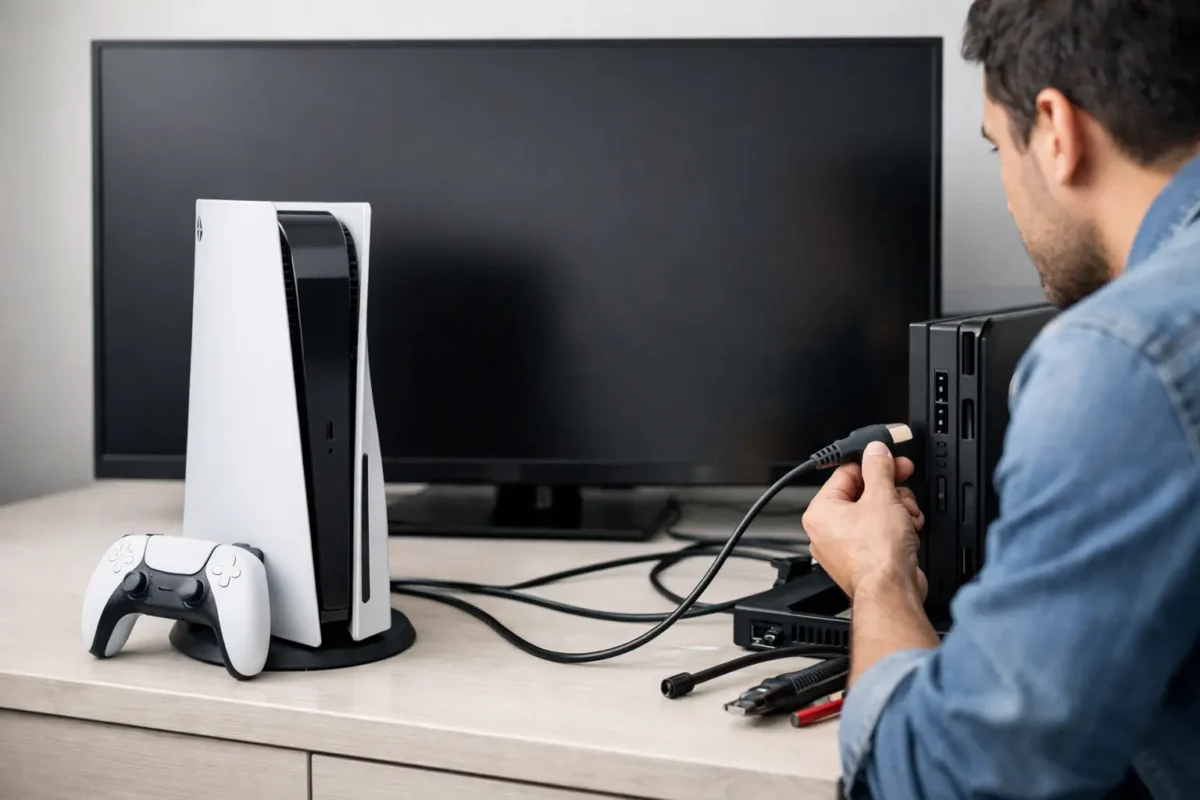
A PS5 that powers on but leaves your TV on a black screen is not always a dead console. In many cases, this PS5 no display troubleshooting guide will help you isolate a bad cable, incorrect video setting, handshake problem, or damaged HDMI connection before assuming the worst. The key is testing in the right order so you do not create a second problem while chasing the first.
If the console has a solid white light, you can hear it boot, or the controller connects but the screen stays blank, the PS5 may be working normally behind a failed video path. If it never reaches a stable white light, shuts down, or flashes blue continuously, the fault may be deeper than the HDMI system.
Start With the Simple Video Path Checks
Disconnect the PS5 from power, then disconnect the HDMI cable from both the console and the display. Leave it unplugged for at least 60 seconds. This clears a stuck HDMI handshake between the console, television, receiver, or monitor.
Reconnect the PS5 directly to a TV or monitor using a known-good HDMI cable. Do not test through a soundbar, AV receiver, HDMI splitter, capture card, or switch at first. Those devices can fail to pass the signal correctly, especially with 4K, HDR, HDCP, or 120 Hz settings.
Make sure the display is set to the exact input where the PS5 is connected. It sounds basic, but modern TVs often have several HDMI ports with separate input labels and settings. Try another HDMI input on the same display, then try the PS5 on a different TV or monitor if one is available.
A successful test on another screen points toward the original display, its HDMI port, or an incompatible setting. No image on multiple known-good displays is a stronger sign that the console itself needs attention.
Inspect the PS5 HDMI Port Before Forcing Anything
Use a flashlight to look into the PS5 HDMI port. The port should sit straight and firmly against the rear chassis. Look for bent internal pins, a loose connector, cracked metal housing, debris, or a cable that feels unusually loose when inserted.
Do not force a cable into a damaged port. A loose or bent HDMI port can lose the signal connection entirely, and forcing the plug can tear pads from the motherboard. That turns a repairable port failure into a more involved board repair.
Also inspect the HDMI cable ends. A cable can look fine yet fail under higher bandwidth. If you have another certified high-speed HDMI cable, use it for testing. This is particularly worthwhile if the display worked before a move, cleaning, cable swap, or console repositioning.
Use Safe Mode to Reset Problem Video Settings
A PS5 can produce no picture because its resolution, refresh rate, HDR mode, or HDCP setting does not agree with the connected screen. Safe Mode lets you start the system with a basic video output and change settings without guessing.
First, fully turn off the console. Hold the power button until the PS5 beeps and powers down. Wait until all lights are off. Then press and hold the power button again. Keep holding after the first beep and release only after the second beep, usually about seven seconds later.
Connect the controller to the PS5 with a USB data cable and press the PS button. If Safe Mode appears, choose Change Video Output. Start by changing the resolution to 1080p or Automatic. If the screen was working on a previous television but not a new one, this often restores the image.
Safe Mode also offers an option to change HDCP mode. HDCP is copy-protection communication used by HDMI devices. A compatibility issue involving a receiver, capture device, older display, or certain monitors can cause a black screen even when the console itself is operating.
Avoid selecting Reset PS5 or Reset PS5 (Reinstall System Software) while troubleshooting a display issue unless you understand the consequences. Those options can erase user data and will not repair a physically damaged HDMI port or failed video circuit.
Check the Display Side of the Connection
When the PS5 works on one screen but not another, inspect the display settings before blaming the console. Some TVs have enhanced-format, deep-color, or gaming-mode settings assigned to individual HDMI inputs. A port configured incorrectly may not accept the PS5’s selected signal format.
For a 4K TV, try disabling advanced HDMI format temporarily or using a different input. For a gaming monitor, test with 60 Hz before trying 120 Hz. Older displays may accept 1080p but reject a 4K HDR signal, while some newer displays need a firmware update or a specific input setting for high-bandwidth video.
If you use an AV receiver or soundbar, reconnect the PS5 directly to the television. If video returns, the intermediate device, its cable, or its settings are the issue. This is a common trade-off with complex entertainment setups: convenience adds more points where an HDMI handshake can fail.
When a PS5 No Display Problem Is Hardware Failure
If you have tested multiple displays, multiple cables, direct connections, and Safe Mode without getting video, the problem may be inside the console. The most common physical failure is a damaged HDMI port, especially after an impact, a tight cable pull, or moving the console while connected.
But a good-looking port does not rule out a board-level fault. The HDMI circuit includes protection components, filters, power rails, signal conditioning hardware, and high-speed video circuitry. A failed component in that path can leave the PS5 with normal power lights and no image. Water damage, electrical surges, overheating, failed prior repairs, and physical stress can all contribute.
A true diagnosis requires more than replacing the port and hoping for the best. A qualified technician should inspect the connector under magnification, test for shorts and proper HDMI power, evaluate the signal path, and verify the console on a known-good display after repair. Board-level diagnosis matters because the visible symptom is the same whether the failed part is the port itself or a component farther down the circuit.
What Not to Do With a No-Display PS5
Do not repeatedly power-cycle the console for hours, attempt random software resets, or open the system just to reseat parts you cannot test. If the PS5 has a liquid exposure history, smells burnt, gets unusually hot, or turns off after attempting to boot, stop using it. Continuing to apply power can increase corrosion or damage a compromised circuit.
Avoid bargain HDMI port repairs that treat every black-screen console as the same job. A port replacement can be the correct solution, but only when testing supports it. Good repair work starts with fault isolation, not a one-size-fits-all part swap.
For Riverside County gamers and mail-in customers dealing with a PS5 that still has no signal after these checks, Amazing Technology Group can perform in-house diagnostics and component-level HDMI and motherboard repair. That means identifying the actual failure before recommending the repair path.
A black screen is frustrating, especially when a game night or a long-awaited release is waiting. Work through the external checks carefully, preserve your data by avoiding unnecessary resets, and let proven diagnostics take over when the signal path points to hardware.