

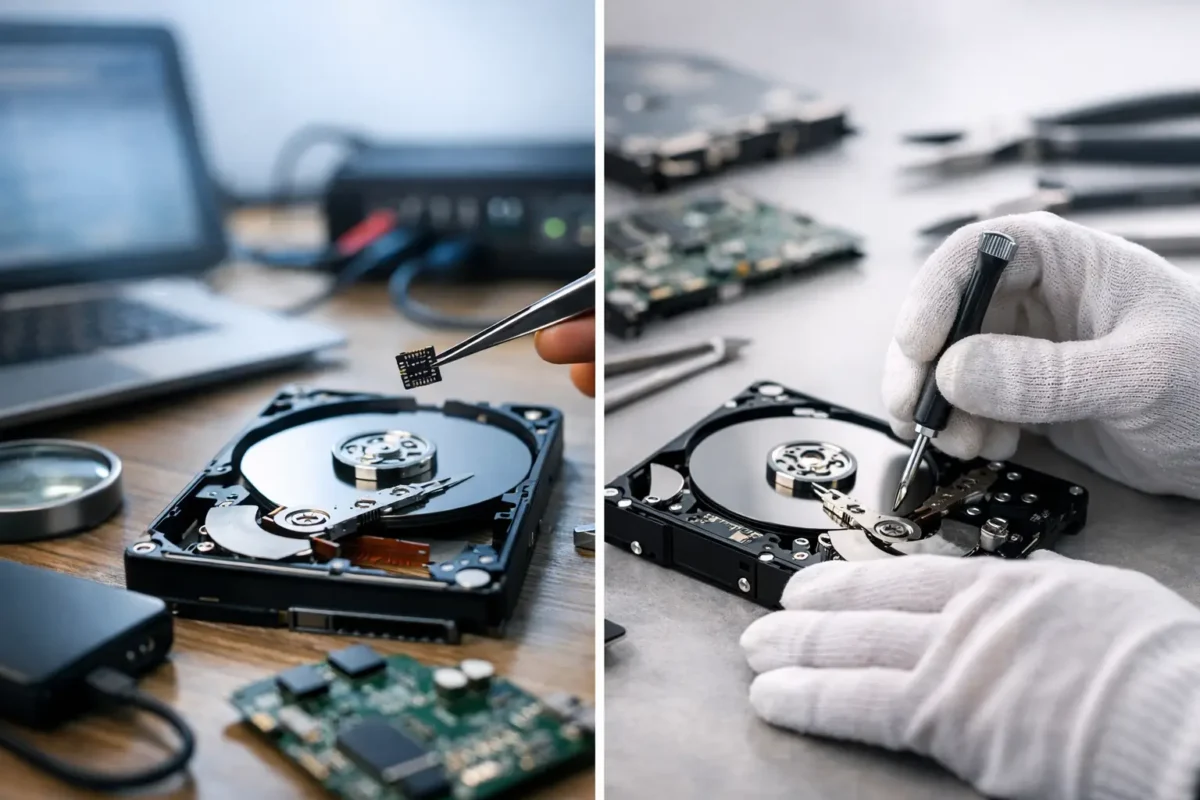
A laptop that will not boot, an external drive that suddenly asks to be formatted, or a business server with missing files creates the same immediate question: can it be fixed? The answer depends on data recovery versus drive repair. These services overlap, but they have different goals. One is built to get your files back. The other is built to make hardware function again. Choosing the wrong priority can turn a recoverable problem into permanent loss.
For customers with irreplaceable photos, DJ libraries, project files, accounting records, game saves, or business data, the first move should be protection, not experimentation. Stop using the affected device and get a real diagnosis before approving repairs, reinstalling software, or running random recovery programs.
Data Recovery Versus Drive Repair: The Core Difference
Data recovery is the process of extracting accessible files from a failing, damaged, deleted, corrupted, or inaccessible storage device. The target is the data itself, not necessarily a reusable drive. A successful recovery may end with your files safely copied to a new drive while the original device is retired.
Drive repair focuses on restoring the storage device or the system around it to working condition. That may involve replacing a damaged connector, repairing a USB enclosure, correcting a power issue, resolving a motherboard fault, rebuilding a computer’s boot configuration, or addressing board-level damage that prevents a drive from communicating.
The distinction matters because a repair can sometimes change the drive. Writing data, installing an operating system, initializing a disk, updating firmware, or repeatedly powering a failing drive may overwrite recoverable information or push weakened components over the edge. If the files matter more than the hardware, recovery comes first.
A simple way to frame the decision is this: if you need the files, prioritize data recovery. If the files are already backed up and you need the equipment operating again, drive or system repair may be the better route.
When Data Recovery Should Come First
Data recovery is usually the right priority when the drive contains unique data and is showing signs of failure. That includes a hard drive making clicking, grinding, beeping, or repeated spin-up sounds. It also includes drives that disconnect at random, appear as empty, request formatting, show folders with strange names, or cause the computer to freeze when accessed.
A drive that has been dropped, exposed to liquid, connected to the wrong power supply, or damaged by a power surge also deserves a recovery-first approach. Physical damage can be progressive. Every unnecessary power cycle can reduce the odds of a clean extraction.
Deleted files and accidental formatting are also recovery cases. The data may still exist on the storage device until new information overwrites it. Continuing to use the computer, downloading recovery software to the same drive, or reinstalling Windows can destroy the exact data you are trying to save.
For businesses, the stakes can be higher than one workstation. A failed NAS, RAID array, server volume, or external backup device may contain shared documents, databases, customer records, media assets, or years of operational history. Do not pull drives from a RAID and reconnect them in random order. The array’s configuration, drive order, and condition all matter during recovery.
Hard Drives and SSDs Fail Differently
Traditional hard disk drives use moving parts. Their spinning platters, read/write heads, motors, and electronics can fail mechanically or electrically. Clicking often points to an internal mechanical issue, while a dead drive with no spin may have an electronics or power problem. Neither symptom is a reason to put the drive in a freezer, open it on a workbench, or keep rebooting it.
Solid-state drives have no moving heads, but they are not immune to failure. SSD problems can involve controller failure, degraded NAND flash, firmware faults, file-system corruption, power events, or encryption complications. Some SSD failures are sudden: the drive is present one moment and completely unavailable the next. Because modern SSD controllers manage data internally, recovery can be more complex than many people expect.
Whether the device is a hard drive, SSD, flash drive, memory card, or a storage volume inside a laptop, the correct method starts with diagnosis. The symptoms tell technicians where to look, but they do not tell the entire story.
When Drive Repair Is the Better Investment
Drive repair makes sense when the storage media is healthy but the path to it has failed. An external drive may be perfectly intact while its enclosure, cable, USB port, power adapter, or bridge board is defective. A laptop may fail to detect its SSD because of motherboard damage, a loose connector, corrosion, or a damaged power rail.
In these situations, repairing the surrounding hardware can restore access without performing a full data recovery procedure. A technician may test the drive with known-good equipment, inspect the connector and board, measure power delivery, and determine whether the storage device itself is the problem.
Repair can also be practical after the data has been secured. If a computer has a damaged charging circuit, failed USB controller, or board-level fault that prevents it from booting, fixing that fault may return the system to service. This can be especially valuable for specialized workstations, custom gaming PCs, older systems with expensive software setups, and DJ equipment that relies on a specific storage configuration.
Still, repairing a failing storage drive solely to keep using it is often a poor long-term decision. A hard drive with internal mechanical trouble should generally be replaced after recovery. An SSD with an unstable controller may be readable today and gone tomorrow. The goal is not to force unreliable media back into daily duty. The goal is to protect the data and restore dependable operation.
What Not to Do Before a Diagnosis
Most preventable data loss happens after the initial failure. The device stops working, someone searches for a quick fix, and a recoverable condition gets worse. If the data is valuable, avoid these common mistakes:
- Do not format, initialize, erase, or repartition the drive.
- Do not reinstall an operating system onto the affected storage device.
- Do not run repair utilities that write changes until the data has been evaluated.
- Do not keep restarting a clicking, overheating, or repeatedly disconnecting drive.
- Do not open a hard drive’s sealed casing outside a controlled environment.
Software tools can be useful for straightforward logical problems on a stable drive, especially when the lost files are not critical. But they are not a universal answer. They cannot fix damaged heads, failed controllers, unstable power circuits, or drives that drop offline under load. They can also place extra stress on failing media by scanning it for hours.
A Practical Decision Process
Start by identifying what matters most: the files, the hardware, or both. If the files exist nowhere else, treat the situation as a recovery case until a technician confirms otherwise. If you have a verified, current backup, the decision can shift toward repairing or replacing the device quickly.
Next, look at the failure symptoms. A computer that powers on but cannot see its internal drive may have a drive issue, a motherboard issue, or both. An external drive that works when removed from a failed enclosure may only need enclosure repair or replacement. A drive that appears but locks up the system during file access requires a more cautious approach.
Then, approve work in the right order. A sound process begins with non-destructive diagnostics. The technician checks the storage device, interface, power delivery, system health, and file-system condition before taking action that could alter the media. If recovery is required, files should be copied to separate, healthy storage. Once the data is safe, repair options become much easier to evaluate.
At Amazing Technology Group, that approach means looking past simple part swapping. Board-level diagnosis can reveal whether the failure is in the drive, its enclosure, the computer’s power circuit, or the system board that communicates with it. That clarity helps customers avoid paying for the wrong fix.
Cost, Time, and Expectations
Recovery and repair costs depend on the failure type, device capacity, hardware design, degree of damage, and urgency. A damaged cable or enclosure may be a relatively direct repair. A drive with physical internal failure, severe corruption, encryption, or RAID complications can require substantially more time and specialized work.
There is also a trade-off between speed and risk. A rushed attempt to get a computer booting may be reasonable when everything is backed up. It is not the right move when the only copy of a business database or family photo library is on the failing drive. A professional diagnosis gives you a realistic path before the situation becomes more expensive.
If you are unsure which service you need, preserve the device’s current condition. Disconnect it safely, label any related drives and cables, write down what happened, and avoid further use. The best time to protect recoverable data is before the next restart, not after it.