

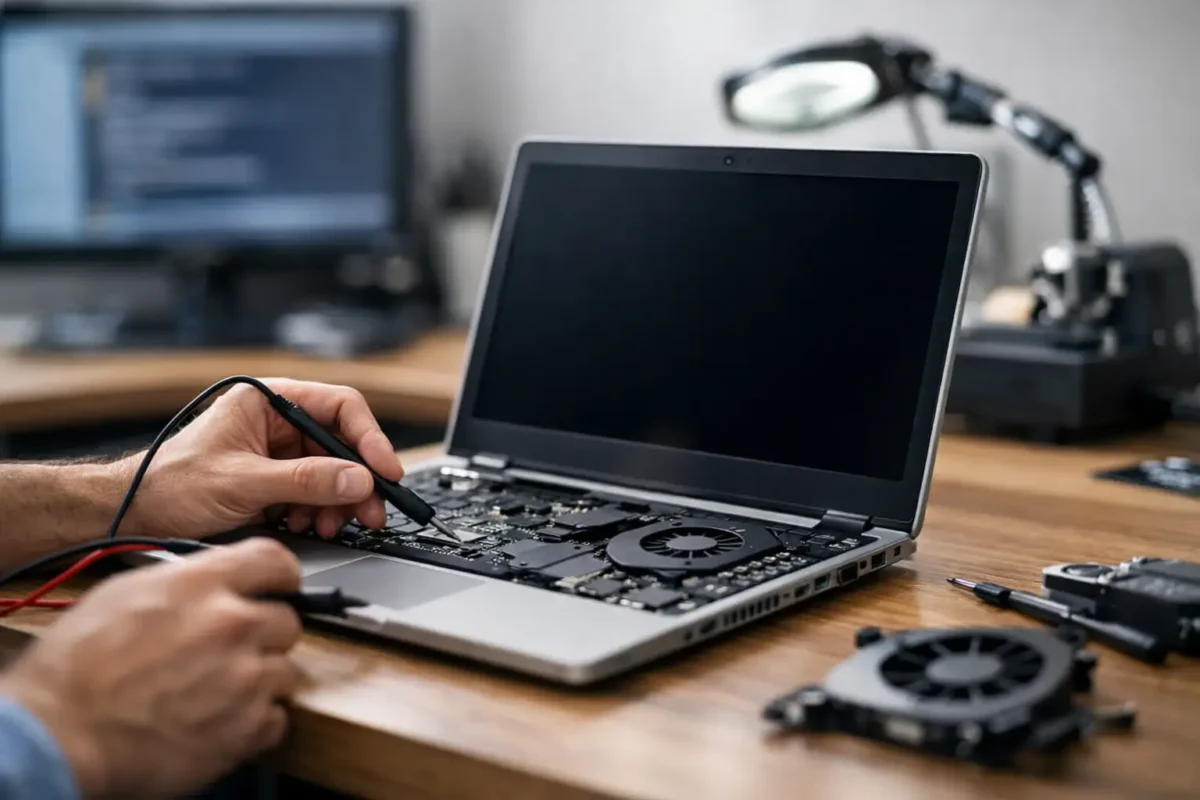
A laptop that shuts off without warning is not just annoying. It can interrupt work, corrupt files, damage an operating system, and leave you wondering whether the problem is a battery, charger, overheating issue, or failed motherboard. Diagnosing intermittent laptop shutdowns requires a controlled process because the same symptom can come from several very different failures.
The key is not to guess based on the first shutdown. A real diagnosis recreates the condition, measures what the system is doing when it fails, and rules out the inexpensive and external causes before moving into board-level testing. That approach protects your data, your budget, and the laptop itself.
What an Intermittent Shutdown Actually Tells You
An intermittent shutdown means the machine loses power or forces itself off at an unpredictable time. It may happen under gaming or video editing loads, while charging, when the laptop is moved, after waking from sleep, or even while sitting idle. Each pattern is useful evidence.
A true power loss is different from a Windows crash. If the screen goes black instantly and the laptop is completely dead until the power button is pressed again, the system likely experienced a power interruption or protection event. If it freezes, shows a blue screen, restarts on its own, or displays an error message, software, memory, storage, or driver issues deserve closer attention.
The distinction matters because reinstalling Windows will not fix a shorted power rail, and replacing a battery will not solve a CPU that is shutting down from excessive temperature.
Start With the Shutdown Pattern
Before opening the machine, document when the shutdown occurs. Does it happen only on battery power, only with the charger connected, or in both situations? Does it fail at 20 percent battery but run normally at 80 percent? Does it die when a USB device is plugged in or when the lid angle changes?
A technician can use those answers to narrow the diagnostic path quickly. For example, a laptop that shuts down only when gaming may have thermal trouble, a weak charger, a failing DC-in circuit, or a GPU power problem. A laptop that dies when lifted or flexed may have a loose battery connector, damaged charging port, fractured solder joint, or internal board damage.
Also pay attention to whether the power light stays on. A black display with fans still spinning is not the same failure as a full power-off. It could be a display, graphics, memory, or sleep-state issue rather than a shutdown.
Common Causes of Random Laptop Power Loss
Heat and cooling failure
Modern laptops protect themselves by shutting down when CPU, GPU, or power-delivery temperatures exceed safe limits. Dust-clogged heatsinks, failing fans, dried thermal compound, warped cooling assemblies, and poor airflow can all trigger protection. High-performance gaming laptops are especially vulnerable because their components can draw significant power in a compact chassis.
Heat is not always obvious. A fan may spin but fail to reach its required speed. Thermal paste may look present while no longer transferring heat effectively. A temperature sensor or fan-control circuit can also report bad values and cause the system to react incorrectly.
Proper testing includes monitoring temperatures under controlled load, checking fan behavior, inspecting the cooling path, and confirming that the heatsink makes correct contact with the processor and graphics chip. Simply blasting compressed air through a vent may move dust around without clearing the packed debris that blocks the heatsink fins.
Battery, charger, and charging-port problems
Battery failures can cause sudden shutdowns even when the battery percentage appears normal. A worn battery may sag under load, and the voltage can drop far enough to shut the laptop down. Swollen batteries are a safety issue and should be removed from service immediately. Do not keep charging or pressing on a swollen pack.
The charger matters just as much. A low-wattage, counterfeit, damaged, or failing adapter may power a laptop at idle but collapse under load. USB-C charging adds another layer: cable quality, power-delivery negotiation, charger wattage, and port condition all affect stability.
A worn DC jack or USB-C port can cause power to disconnect when the cable moves. On some models, that port is a separate replaceable assembly. On others, it is soldered directly to the motherboard, which calls for board-level repair rather than forcing a replacement part into place.
Motherboard power faults
When the battery, charger, and cooling system check out, the issue may be on the motherboard. Power-management ICs, charging circuits, MOSFETs, coils, capacitors, USB-C controllers, and CPU or GPU power rails can fail intermittently. Liquid exposure, impact damage, corrosion, prior repair attempts, and normal component wear can all contribute.
These failures are why part-swapping has limits. Replacing the battery, SSD, and charger may not touch the actual fault if a power rail is dropping out for milliseconds under load. Board-level diagnostics use voltage measurements, resistance checks, thermal inspection, current-draw behavior, and sometimes microscope work to locate the failed component or damaged area.
Memory, storage, and software events
Not every apparent shutdown is a power problem. Bad memory can freeze or restart a laptop. A failing SSD may crash the operating system when a damaged area is accessed. Corrupt drivers, BIOS issues, and operating-system errors can also create behavior that looks like random power loss.
These causes should be checked, but in the right order. If a laptop instantly powers off with no error and no restart, start with power and thermal testing. If it generates blue screens or reboots consistently after a particular program or driver loads, software and hardware stability testing become more likely.
A Practical Process for Diagnosing Intermittent Laptop Shutdowns
A reliable diagnosis begins with preserving the customer’s information. If the laptop can remain powered on long enough, back up critical data before extended stress testing or repair work. Intermittent shutdowns can become permanent failures without warning.
Next, inspect the physical condition. Check the charger, cable, charging port, vents, battery condition, screws, hinges, and signs of liquid or impact damage. An exterior inspection often reveals clues that software tools cannot.
Then test power behavior methodically. Run the laptop on a known-good compatible charger, test battery operation separately where the model allows it, and observe current draw. Check whether the shutdown changes under CPU load, GPU load, battery charging, external display use, or movement of the power cable.
Temperature and event data are useful, but they are not the final answer. A system log may show an unexpected shutdown without identifying why power was lost. Likewise, a temperature reading can look normal if the monitoring software stops reporting just before the failure. Real diagnostics compare logs with physical measurements and repeatable test conditions.
If the problem points to the board, the diagnosis moves deeper. Technicians inspect the charging and power circuits for shorts, unstable rails, damaged components, corrosion, and abnormal heat signatures. This is where in-house micro-soldering capability can make the difference between a targeted repair and an unnecessary motherboard replacement.
What Not to Do While You Wait for Service
Avoid repeatedly forcing the laptop through heavy workloads just to see if it fails again. If a cooling system is compromised or a power component is already unstable, repeated shutdowns can make the damage worse. Do not use a charger with exposed wiring, a loose connector, or unknown power specifications.
Skip the common “fixes” that erase evidence. A factory reset can destroy recoverable data while doing nothing for a power fault. Random BIOS changes can create a second problem. Opening a thin laptop without the right tools can tear a battery cable, strip screws, or damage fragile display and antenna connections.
If the device is warm, the battery is swollen, there is a burning smell, or the charging port gets unusually hot, stop using it. Disconnect power and have it inspected before attempting another charge cycle.
When Professional Diagnosis Is Worth It
A professional evaluation makes the most sense when the laptop contains important files, is a high-value gaming or business system, has liquid damage, or has already been through basic battery and charger testing without a solution. It is also the right move when a shop suggests replacing the whole motherboard without identifying the failed circuit.
At Amazing Technology Group, difficult laptop failures are tested in-house instead of being dismissed as “not repairable” or treated with a string of guesswork replacements. That matters when a targeted charging-circuit, power-rail, connector, or cooling repair can preserve a machine that still has years of useful life.
A shutdown is a symptom, not a verdict on the laptop. Keep a note of when it happens, protect your data while the system still starts, and let the evidence guide the repair. The right diagnosis turns a random failure into a specific, repairable problem.