

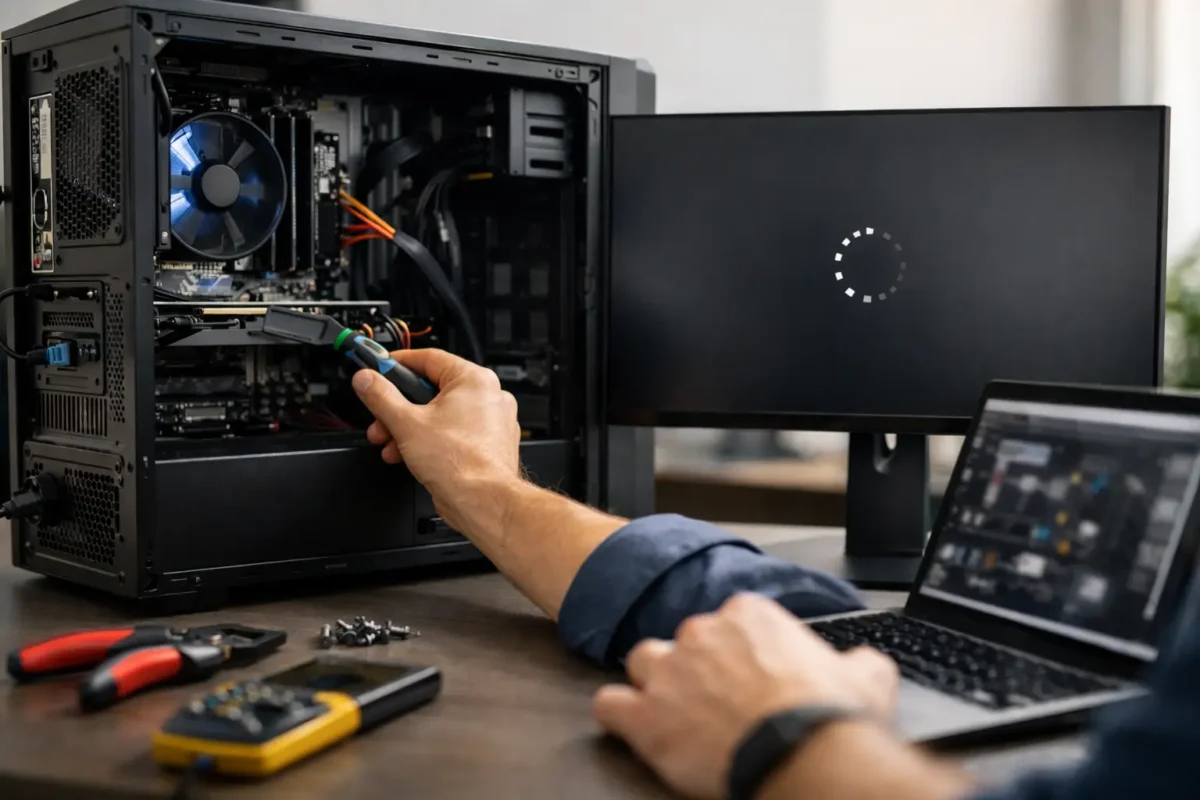
A PC that powers on, flashes a logo, shuts down, and starts the cycle again is not giving you a useful error message. It is telling you that a critical step in startup is failing. The right PC boot loop repair options depend on exactly where that failure occurs: before the operating system loads, during Windows startup, or only after the computer has been running for a moment. Guessing can waste money, damage data, or hide the actual fault.
A boot loop can be caused by something simple, such as a disconnected drive or a failed Windows update. It can also point to failing memory, an unstable power supply, a damaged motherboard, corrupt firmware, liquid exposure, or a shorted component. The goal is not to throw parts at the machine. The goal is to isolate the failure and repair what is actually wrong.
First, Identify the Type of Boot Loop
The point where the computer restarts tells a technician a great deal. If the system cycles before showing a manufacturer logo or BIOS screen, the problem is usually hardware, power delivery, firmware, memory, or the motherboard. Windows has not loaded yet, so reinstalling Windows will not fix it.
If the PC reaches the Windows logo, spins for a while, then reboots, the cause may be a damaged operating system, driver conflict, storage failure, or update problem. If it starts normally but restarts under gaming, rendering, or other heavy workloads, heat, power supply instability, graphics card faults, and overclock settings move higher on the suspect list.
Pay attention to patterns. Does it loop only with a USB device connected? Does it stay on longer after sitting unplugged? Did the issue begin after a power outage, dropped laptop, BIOS change, upgrade, or Windows update? Those details matter because they narrow the diagnostic path before a single part is replaced.
Safe PC Boot Loop Repair Options to Try First
Before opening the system, disconnect all nonessential external devices. Remove USB drives, printers, external storage, controllers, docks, and memory card readers. A damaged USB device or a system attempting to boot from the wrong device can create a surprisingly convincing boot failure.
Then perform a complete power reset. Shut the computer down, unplug it from wall power, and hold the power button for 15 to 30 seconds. On a laptop with a removable battery, remove the battery as well before holding the button. Reconnect only the power adapter or power cable and try again. This can clear residual charge and reset an embedded controller after a power event.
If you can enter BIOS or UEFI setup, check whether the internal SSD or hard drive is detected. Confirm that the correct boot drive is first in the boot order. Do not change random firmware settings just because they are available. Record current settings before making changes, especially on custom gaming PCs with tuned memory profiles or overclocking.
For a Windows-level loop, try the recovery environment. After repeated failed starts, Windows may offer Startup Repair, Safe Mode, System Restore, or uninstall options for recent updates. Startup Repair is worth trying, but it is not a cure-all. If the drive is failing or Windows system files are corrupted because of a hardware problem, the repair may fail or the loop may return.
When Memory, Storage, and Power Need Testing
Memory problems are a common cause of no-boot and restart loops, especially after a new RAM upgrade or an XMP or EXPO memory profile change. On a desktop, testing one memory module at a time in the recommended slot can help identify a bad stick or slot. On a laptop, memory access varies by model, and forcing open a machine without the right tools can create more damage than it solves.
A failing SSD can also cause a PC to loop at the Windows logo, freeze during automatic repair, or take an unusually long time to load. A drive can still appear in BIOS and still be unreliable. Professional diagnostics should check drive health data, read stability, and whether the system can access the file system without repeated errors.
Power is another major factor. A weak or failing power supply may start a computer but collapse when the motherboard, CPU, or graphics card begins drawing more current. In laptops, a failing charger, DC jack, battery circuit, or charging controller can produce similar behavior. Swapping in an untested used power supply is not a reliable test. A poor-quality unit can introduce new instability or put valuable components at risk.
Firmware and Motherboard Failures Are Different Repairs
A boot loop that occurs before BIOS can be more involved than a software repair. Corrupted BIOS firmware, failed voltage regulation, damaged power rails, shorted capacitors, defective integrated circuits, or a bad CPU socket connection can all produce repeated startup attempts.
This is where the difference between diagnosis and part swapping becomes clear. Replacing a motherboard may be practical on some systems, but it is not always the best value. On expensive laptops, custom desktops, and systems with hard-to-find boards, component-level repair may preserve the original hardware and cost less than replacement.
Board-level diagnosis involves measuring power rails, checking for shorts, testing components under load, inspecting for corrosion or physical damage, and determining whether the failure is repairable. It takes proper equipment and experience. Randomly probing a live board, attempting an online “reflow” trick, or heating chips with a heat gun can turn a repairable fault into permanent board damage.
Protect Your Data Before Major Repair Steps
A boot loop does not automatically mean your files are gone. In many cases, documents, photos, projects, and game saves remain intact on the storage drive. The risk increases when the drive itself is failing, when automatic repairs are repeatedly writing to the disk, or when a user jumps straight to a factory reset.
If your data matters, do not reinstall Windows or format the drive as the first move. A qualified technician can determine whether the drive is healthy enough to back up, clone, or recover before operating system repair begins. Encryption also matters. If BitLocker device encryption is enabled, make sure you have access to the recovery key before any major changes are made.
For business systems, the stakes can be higher than a single computer. A boot loop may interrupt access to locally stored files, accounting software, line-of-business applications, mapped drives, or specialized hardware. Repair should include a check for the underlying cause, not just a quick restoration that leaves the same issue waiting to happen again.
When It Is Time for Professional Diagnosis
Bring the PC in for expert service when it loops before BIOS, shows burn marks or liquid damage, makes clicking or grinding drive noises, has no stable display output, or continues rebooting after basic recovery steps. The same applies when the system contains irreplaceable data, uses a custom water-cooling setup, or has had previous unsuccessful repair attempts.
At Amazing Technology Group, difficult failures are diagnosed in-house rather than dismissed as “needs a new computer.” That means testing the system methodically, identifying whether the fault is software, storage, power, memory, firmware, or the board itself, and presenting repair options before work moves forward. Some systems need a Windows repair and a new SSD. Others need micro-soldering or a power circuit repair. The answer depends on evidence, not assumptions.
Repair, Replace, or Rebuild?
The best repair decision comes down to age, performance needs, part availability, repair cost, and the value of the data and software already on the machine. Replacing a low-end, aging system may make sense if it needs several major parts. Repairing a newer laptop, professional workstation, or custom gaming PC often makes more financial sense, particularly when the failure is isolated to one serviceable component or board-level circuit.
A proper boot loop repair should leave you with more than a computer that happens to start once. It should give you a clear explanation of the failure, a realistic recommendation, and a system you can trust when you press the power button tomorrow.