

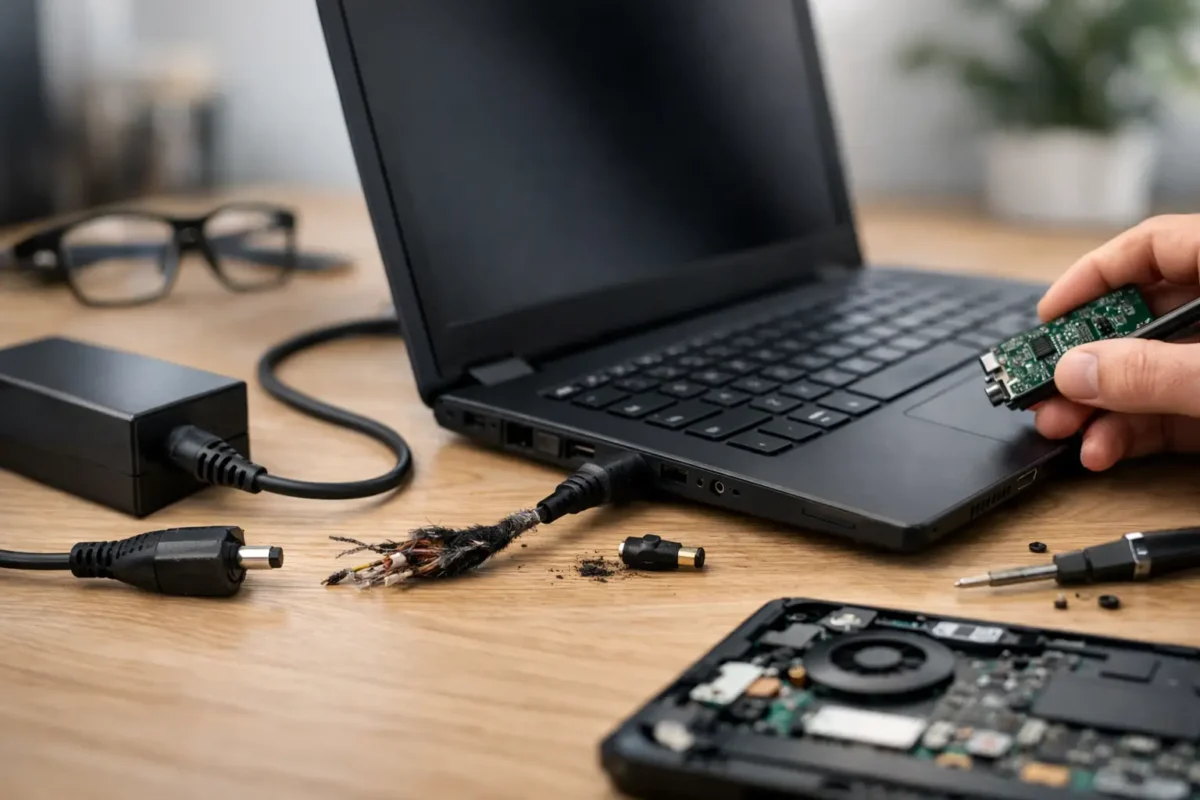
A laptop that will not charge can turn a normal workday, class session, or gaming night into a countdown clock. The question of what causes laptop charging failure rarely has one simple answer. The battery may be worn out, but the real problem could also be the charger, the charging port, the USB-C power negotiation circuit, or a failed component on the motherboard.
That difference matters. Replacing a battery when the board is not accepting power wastes money and leaves the laptop dead. A proper diagnosis follows the path electricity takes from the wall outlet to the adapter, through the charging port, into the charging circuit, and finally to the battery.
What Causes Laptop Charging Failure?
Charging failure happens when one part of that power path cannot deliver, regulate, or store the power the laptop needs. Sometimes the failure is obvious, such as a chewed cable or a loose port. Other times, the laptop may recognize the charger but refuse to increase its battery percentage, shut off under load, or alternate between charging and not charging.
The symptoms provide useful clues, but they do not prove the cause. For example, a battery stuck at 0% can be a failed battery pack, an underpowered adapter, a damaged DC-in jack, or a motherboard charging fault. That is why real repair begins with testing, not guessing.
1. A failed or underpowered charging adapter
Adapters take more abuse than most people realize. They get wrapped tightly, pulled by the cable, stepped on, left in hot cars, and used with overloaded power strips. Internal wire breaks often develop near the strain relief at the adapter brick or connector. The outside can look perfect while power cuts in and out whenever the cable moves.
Using the wrong adapter can create similar symptoms. A charger with the wrong voltage can damage equipment. One with the correct voltage but insufficient wattage may let the laptop run while failing to charge the battery, especially during gaming, video editing, or other high-load work. Some systems reduce performance, show a low-wattage warning, or slowly lose battery power even while plugged in.
USB-C charging adds another layer. Not every USB-C cable supports the same wattage, and not every USB-C power brick can negotiate the profile a laptop requires. A phone charger may physically fit a laptop but still deliver far too little power.
2. A damaged charging port or DC-in jack
If the plug feels loose, must be held at an angle, sparks slightly, or only works in one position, the charging port needs attention. Traditional barrel-style jacks can loosen from their mounts, crack at solder joints, or suffer broken center pins. USB-C ports can collect debris, bend internal contacts, or tear away from the board after repeated side pressure.
A damaged port is not always a simple replacement. On some laptops, the DC jack is a separate cable-mounted part. On others, especially many USB-C designs, the port is soldered directly to the motherboard. A technician needs to inspect the connector, test for continuity, and check whether the damage extends to nearby board traces or power components.
Do not keep forcing a loose plug into place. Intermittent connection can create heat and arcing that turns a manageable port repair into a larger board-level problem.
3. A worn, failing, or locked-out battery
Lithium-ion batteries wear down with charge cycles, heat, and age. As a battery degrades, its capacity drops, internal resistance rises, and the laptop may shut down sooner than expected. Eventually, the battery management system may report a service warning, refuse to charge, or limit charging to protect the pack.
A battery can also appear healthy in software while failing under load. The laptop might charge to 100%, then die abruptly at 40% when a game launches or a video call starts. That behavior often points to weak cells that cannot maintain stable voltage.
Not every battery that stops at 80% is defective. Many manufacturers include battery preservation settings that intentionally cap charging around 50%, 60%, or 80% to extend battery lifespan. Check the laptop’s power utility and BIOS settings before assuming the battery needs replacement.
4. Corrupted power settings, firmware, or drivers
Software does not usually cause physical charging failure, but it can interfere with how a laptop reports and manages power. A corrupted battery driver, outdated BIOS, failed operating system update, or manufacturer power-management utility can make charging behavior look worse than it is.
Typical signs include an incorrect battery percentage, a charging icon that does not update, or a battery that is recognized only after restarting. Resetting the embedded controller, reinstalling battery-related drivers, or updating firmware may help when the hardware tests good.
There is a trade-off here: firmware updates should only be performed when the laptop has stable power. Updating BIOS on a machine that can lose power mid-process can cause a much more serious failure. If the charging issue is intermittent, establish reliable external power first or have the system evaluated.
5. Heat damage and liquid exposure
Heat is hard on batteries and motherboard charging circuits. A laptop used on blankets, in dusty environments, or under constant heavy load can run hot enough to accelerate battery wear and stress power components. Swollen batteries are especially serious. They can lift the trackpad, separate the bottom cover, or warp the chassis.
If a battery is swollen, stop using and charging the laptop. Do not puncture it, press the case flat, or continue operating it because it still turns on. The correct repair involves safely removing the damaged battery, checking for collateral damage, and replacing it with a quality compatible part.
Liquid damage is equally deceptive. A spill may cause an immediate shutdown, but corrosion can also develop gradually around the charging port, battery connector, or charging IC. A laptop that worked for weeks after a spill can still fail later as corrosion eats away at contacts and copper traces.
6. Motherboard charging-circuit failure
This is where many standard repair shops stop. The motherboard contains the components that identify the charger, control incoming voltage, protect the system from overcurrent, and route power to the battery. Depending on the design, that includes charging controllers, MOSFETs, current-sense circuits, fuses, coils, and USB-C power-delivery controllers.
When one of these components fails, the laptop may be completely dead, run only on battery, run only on the charger, or report “plugged in, not charging.” The charging light may blink a pattern, or there may be no visible sign at all.
Board-level diagnosis means measuring voltage at specific points and determining where the power path stops. It can involve micro-soldering, replacing a damaged component, repairing a corroded trace, or rebuilding a torn USB-C port area. In many cases, this is more cost-effective than replacing an otherwise good laptop, particularly on premium models or systems with valuable data and software setups.
7. A failed power button board, cable, or internal connector
Sometimes charging is working, but the laptop cannot start. A damaged power button, broken keyboard ribbon cable, loose battery connector, or failed small daughterboard can make the system look like it has a charging problem. The charging LED might come on, yet pressing the power button does nothing.
Internal connectors can loosen after a drop or a previous repair. They can also corrode after moisture exposure. Proper testing separates a no-power condition from a no-charge condition before parts are ordered.
8. Power surge or outlet problems
Before blaming the laptop, rule out the source. A bad wall outlet, failed surge protector, tripped GFCI outlet, or unstable power strip can prevent an adapter from working correctly. Test with a known-good outlet and, when possible, a known-good manufacturer-spec charger.
Power surges can damage the adapter first, which is the better outcome. But severe events can pass through and damage the laptop’s input protection circuitry. If charging failed immediately after a storm or electrical event, the adapter and motherboard should both be checked.
9. Damage caused by drops and everyday wear
A drop can crack solder joints under a charging port, loosen a battery connector, damage the battery cells, or fracture a motherboard trace without leaving dramatic external evidence. Everyday wear can do the same thing more slowly, especially when a charger is frequently tugged from the side.
The key is pattern recognition. If the failure began after a drop, cable pull, spill, or power surge, share that history during diagnosis. It gives the technician a faster route to the likely fault area and helps avoid unnecessary part replacement.
What You Can Safely Check Before Repair
Start with a known-good outlet and inspect the charger cable for kinks, exposed wire, burn marks, or a loose connector. Remove lint from the charging port carefully with a nonmetal tool and good lighting. If the port is loose, the laptop is hot, the battery is swollen, or you smell burning electronics, stop there.
You can also check whether the system recognizes the adapter and review battery-health information in the operating system or manufacturer utility. Avoid opening the laptop unless you have the right tools and experience. Modern laptops often place delicate cables, high-density connectors, and glued battery cells directly under the bottom cover.
The Right Fix Starts With the Actual Fault
Laptop charging failures are frustrating because several different defects can create the same symptom. A professional diagnosis should test the adapter output, inspect the charging port, evaluate battery health, verify charging communication, and trace the motherboard power path when needed. That process identifies whether the repair is a charger replacement, port repair, battery replacement, software correction, or component-level board repair.
At Amazing Technology Group, difficult charging faults are handled with in-house diagnostics and real board-level repair capability, not a quick guess and a parts invoice. If your laptop has stopped charging, protect the data and hardware you still have: stop forcing a failing connection, document the symptoms, and get the power path tested before a small fault becomes a dead system.