

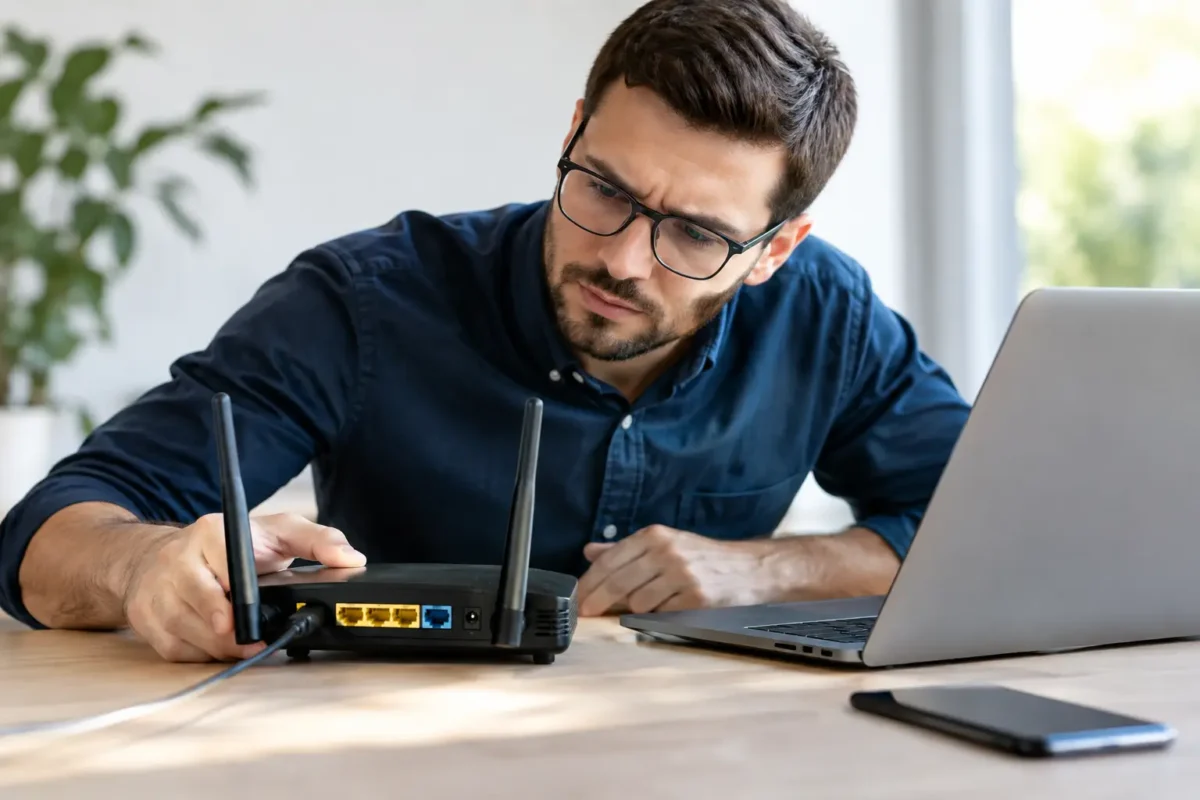
A WiFi failure rarely arrives at a convenient time. It hits during a customer call, a competitive game, a DJ set preparation session, or the moment a business needs access to cloud files. Effective WiFi outage resolution is not guessing, rebooting the same device five times, or replacing hardware that was never bad. It is a controlled diagnosis that identifies whether the problem is the internet provider, modem, router, wiring, wireless signal, device, or network configuration.
That distinction matters. A device can show full WiFi bars while having no usable internet connection. A wired computer can work perfectly while phones and laptops lose service. One office can be offline while another is fine. Each symptom points to a different part of the network, and treating every outage like a bad router wastes time and money.
WiFi Outage Resolution Starts With Scope
The first question is simple: what is actually down? Check more than one device, and if possible, test one device connected directly by Ethernet. If every device has lost access, the issue is likely upstream of the individual computer. If one laptop cannot connect while everything else works, the fault is more likely local to that laptop, its wireless adapter, saved network profile, security software, or IP settings.
Start by separating the internet connection from the WiFi connection. A router may still broadcast its network name even when the modem has lost its connection to the provider. In that case, devices can connect to WiFi but websites, email, games, and remote applications will not load. The wireless network is functioning, but the internet feed is not.
Look at the modem or gateway status lights, but do not treat them as a final answer. Light patterns vary by manufacturer and provider. A red, blinking, or missing online light can point to a service problem, damaged coaxial cable, loose connection, or failed modem. A normal-looking light does not rule out an intermittent signal issue, account provisioning problem, or provider-side outage.
For a business network, determine whether the failure affects one access point, one floor, one VLAN, or the entire site. That scope prevents a small WiFi coverage problem from being handled like a complete network outage.
Check the Physical Layer Before Changing Settings
Networks fail for ordinary physical reasons more often than people expect. A bumped power supply, loose Ethernet cable, overheated router, failing power strip, damaged coax line, or water-exposed outdoor cable can take down a connection without any warning message.
Inspect the equipment path from the wall connection to the modem, router, switch, and access points. Confirm that each device has power and that network cables are fully seated. On Ethernet ports, link lights usually indicate that a physical connection exists, although they do not prove the network is correctly configured.
Avoid immediately factory-resetting the router. A reset can erase ISP credentials, custom DNS entries, port forwards, network names, passwords, static reservations, and business-specific settings. It may turn a recoverable outage into a longer rebuild. A normal power cycle is safer: unplug the modem and router, wait briefly, power up the modem first, allow it to establish service, then power up the router. The correct order matters because the router needs to obtain a working connection from the modem.
If service returns after a power cycle but drops again within hours or days, that is not a finished repair. Intermittent outages often point to heat, power instability, aging hardware, damaged cabling, radio interference, or a provider signal problem that needs to be documented and escalated.
Isolate the Provider, Modem, Router, or WiFi Signal
A direct wired test is one of the fastest ways to narrow the fault. Connect a known-good computer by Ethernet to the router. If it has internet access while wireless devices do not, the ISP and modem are probably working. Focus on wireless settings, access point health, coverage, interference, and client devices.
If the wired connection through the router also fails, the next step depends on the equipment. In some setups, a computer can be tested directly from the modem. This may require the modem to be restarted so it can issue an address to the newly connected device. If the direct test fails, the provider feed or modem becomes the main suspect. If the direct test works but the router does not, the router configuration, WAN port, power supply, or hardware may be at fault.
Do not overlook DNS. When an internet connection exists but sites fail by name, or some applications work while others do not, DNS resolution may be the problem. This can be caused by router settings, a provider issue, security filtering, or a misconfigured business network. It looks like an internet outage to the user, but the underlying connection may still be alive.
Common Wireless Problems That Look Like an Outage
Not every WiFi complaint is a complete outage. Weak coverage, overloaded channels, and poor access point placement can make a connection unusable in certain rooms while it works near the router. Concrete walls, metal shelving, appliances, neighboring networks, and professional audio or industrial equipment can all affect wireless performance.
The 2.4 GHz band travels farther and penetrates obstacles better, but it is more crowded and usually slower. The 5 GHz band often provides better speed and less congestion at shorter range. WiFi 6E and WiFi 7 equipment can add newer spectrum options, but only compatible devices benefit. The right solution depends on the building, device mix, and workload. A larger home or office may need properly placed wired access points or a well-designed mesh system, not a more expensive router placed in the same bad location.
Gaming, video production, cloud backups, DJ libraries, and business voice traffic also expose weaknesses that casual web browsing may hide. A network can appear fine until multiple users begin uploading, streaming, syncing, or running low-latency applications. In those cases, the issue may be bandwidth limits, poor quality-of-service configuration, double NAT, bufferbloat, or an overloaded all-in-one gateway.
When One Device Will Not Connect
When only one device is affected, verify the basics without assuming the hardware has failed. Confirm it is attempting to join the correct network, then forget and rejoin the saved WiFi profile if credentials or security settings may have changed. Restart the device, check that airplane mode is off, and make sure its date and time are correct. Incorrect system time can interfere with secure connections.
On computers, update or reinstall the wireless adapter driver only after checking for broader network issues. A bad driver, failed adapter, antenna damage, or board-level fault can cause repeated disconnects, missing networks, or an adapter that disappears entirely. This is especially relevant for laptops that have been dropped, exposed to liquid, or opened for previous repair.
For managed business devices, do not casually remove profiles or security controls. Certificate-based WiFi, device management, VPN policies, and access controls may need an administrator to restore service correctly.
WiFi Outage Resolution for Businesses Requires Documentation
A business outage needs more than a quick fix. Record when the failure began, which users and systems were affected, whether wired devices worked, what the modem and router showed, and whether the provider confirmed a local outage. That information shortens escalation time and helps identify recurring patterns.
Small-to-mid-sized organizations should also maintain a basic network map showing the modem, firewall, switches, access points, server equipment, and critical wired endpoints. It does not need to be complicated. It needs to be accurate enough that a technician can identify the affected path without tracing cables blindly during an outage.
For locations where downtime costs real money, consider redundancy. A secondary internet connection, cellular failover, battery backup, and properly configured firewall can keep critical operations running through many provider failures. Those safeguards add cost and maintenance, so they make the most sense where lost connectivity stops sales, dispatching, production, security systems, or customer service.
Know When the Problem Needs Hands-On Diagnosis
Call for technical support when outages repeat, equipment runs hot, cables are damaged, the network drops under load, or the cause cannot be isolated with basic testing. Replacing equipment without evidence is often the expensive route, especially when the actual problem is a failing power supply, bad cable run, provider signal issue, or configuration fault.
At Amazing Technology Group, the same diagnostic mindset used for complex electronics repair carries into network troubleshooting: test the failure, isolate the cause, and repair what is actually broken. For Riverside County homes and businesses, that can mean restoring a failed router setup, correcting a network design problem, tracing a cable fault, or determining when an ISP must fix its side of the connection.
A working network should not depend on luck or repeated reboots. Once the immediate connection is back, take the extra step to find out why it failed. That is how a one-time WiFi outage stays a one-time outage.