

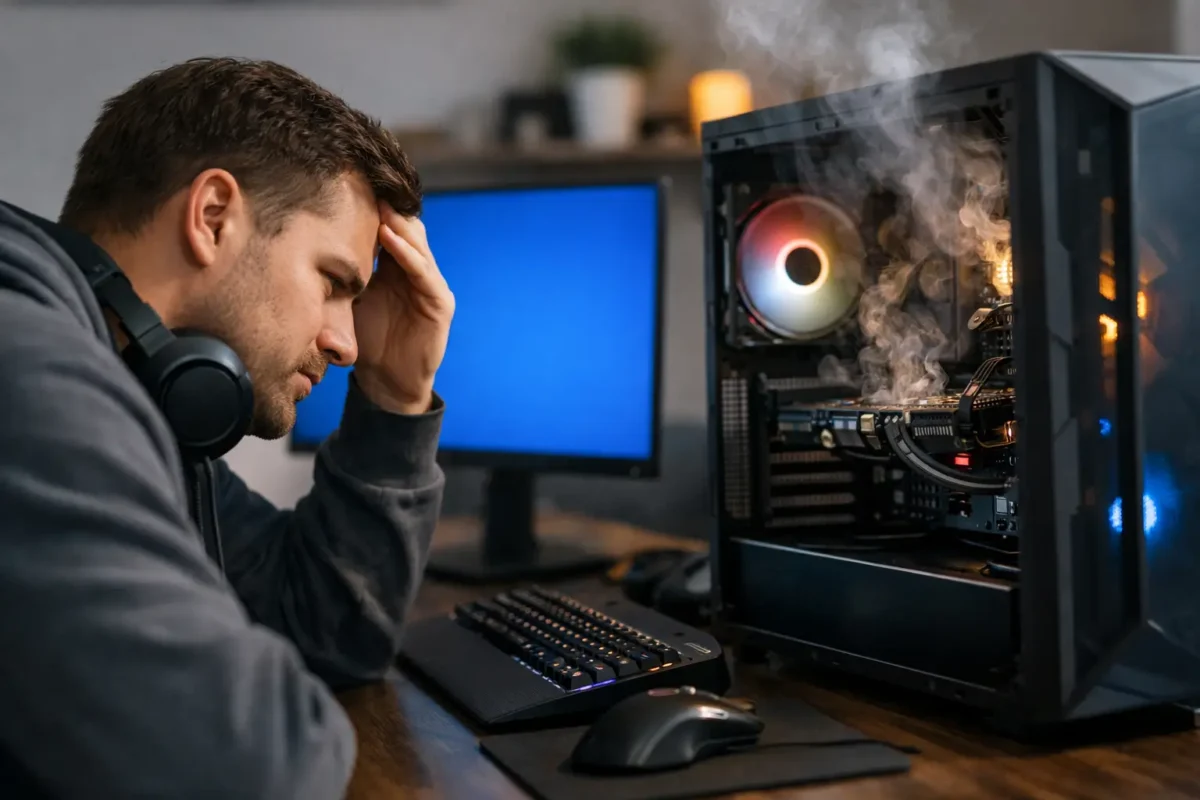
A gaming PC that crashes in the middle of a match usually leaves a trail. The problem is figuring out whether that trail points to heat, power, memory, storage, drivers, or a failing board-level component. If you have been asking, why is my gaming PC crashing, the answer is rarely random. Systems crash for reasons, and the pattern matters.
Some machines crash only under load. Some reboot with no warning. Some freeze, throw a blue screen, or shut off like someone pulled the plug. Those differences are useful. They help narrow down whether you are looking at a software issue, an unstable overclock, a cooling problem, a power delivery problem, or a hardware failure that needs deeper diagnosis.
Why is my gaming PC crashing under load?
If your PC is stable on the desktop but crashes when a game starts, when the GPU ramps up, or when the CPU gets pushed, start with the parts that work hardest under load.
Heat is one of the most common causes. A CPU or GPU running too hot may throttle first, but if temperatures keep climbing, the system can freeze, restart, or shut down. Dust-packed heatsinks, dried thermal paste, failing fans, weak case airflow, and poorly mounted coolers all show up here. Laptops do this too, but desktop gaming rigs often hide the problem longer because they have more airflow until they do not.
Power delivery is another big one. A failing power supply can cause sudden restarts, black screens, or shutdowns during gaming because that is when the system draws the most current. This does not always mean the PSU is undersized. It can also mean aging capacitors, unstable rails, poor-quality units, bad modular cables, or motherboard VRM issues. When a machine powers off instantly under load, power becomes a prime suspect.
Then there is instability from overclocking. Factory overclocks, manual CPU tuning, GPU overclocks, undervolts, and XMP or EXPO memory profiles can all be part of the problem. Plenty of systems look stable for light use but fall apart in games because gaming creates mixed, sustained loads that expose weak settings. Backing everything down to stock is not glamorous, but it is one of the fastest ways to separate tuning problems from failing hardware.
The most common causes of gaming PC crashes
Drivers are high on the list, especially GPU drivers. A clean driver install can solve crashes that started after an update, a new game install, or a hardware swap. That said, blaming drivers too quickly can waste time. If the system has graphical artifacts, random restarts, or crashes across multiple operating systems or test environments, the problem may be deeper than software.
RAM issues are another frequent cause. Bad memory, unstable memory profiles, or marginal motherboard memory support can create blue screens, game crashes, file corruption, and weird behavior that looks unrelated. Memory problems can be inconsistent, which is why they are so frustrating. One day the PC works. The next day a game crashes three times in ten minutes.
Storage problems also get overlooked. A failing SSD or corrupted game files can cause crashes during loading, texture streaming, or updates. If the boot drive is developing errors, the symptoms can spread beyond gaming into Windows instability, slow startup, and failed updates. Storage failure does not always announce itself loudly at first.
Motherboard faults are less common than bad drivers or overheating, but they are real. Damaged power phases, failing capacitors, chipset issues, bad PCIe slots, or BIOS-level instability can all produce stubborn crashes. This is where part-swapping starts to get expensive if diagnosis is not done carefully.
What to check first before replacing parts
Start simple and work in order. First, watch temperatures while gaming. If CPU or GPU temps are climbing into dangerous territory, stop there and fix cooling before chasing other theories. Clean the system, verify fan operation, reseat the cooler if needed, and make sure airflow is not blocked.
Next, return the BIOS to known-stable settings. Disable manual overclocks. If memory is running on XMP or EXPO, test with that profile off. You may lose some performance temporarily, but stability matters more than a benchmark score when you are troubleshooting.
After that, update with purpose, not panic. Update the BIOS only if the board manufacturer specifically addresses stability, memory compatibility, or CPU support. Update chipset and GPU drivers from the correct sources. If crashes began right after a driver update, rolling back may be smarter than pushing forward.
Then check Windows logs and crash behavior. A blue screen with an error code tells a different story than a hard power-off. Event Viewer is not perfect, but it can still help point toward driver faults, kernel power events, or repeated device issues.
At this stage, test memory and storage. Run a proper memory test and check drive health. If errors show up, do not keep gaming and hope for the best. Unstable RAM and bad storage often get worse, and they can take your data with them.
When the GPU might be the problem
If crashes happen only in games, especially visually demanding ones, the graphics card deserves attention. Watch for artifacting, driver timeouts, black screens, fan irregularities, and crashes that line up with high GPU temperature or power draw.
Not every bad GPU is fully dead. Some fail intermittently because of cracked solder joints, VRAM issues, overheating, or power delivery faults on the card itself. In those cases, a simple driver reinstall will not fix much. The same goes for cards that work on the desktop but crash the second 3D load starts.
This is also where generic repair shops often hit a wall. They may tell you to replace the card because they do not perform deeper electronics diagnosis. Sometimes replacement is the right move. Sometimes the failure is repairable at the board level. It depends on the exact fault, the value of the card, and whether the issue is isolated to a repairable component.
Why is my gaming PC crashing with no blue screen?
No blue screen usually points to a hard shutdown, sudden restart, or freeze severe enough that Windows never gets a chance to report the error. That often shifts suspicion toward power, motherboard faults, overheating, or serious GPU instability.
A machine that simply turns off can indicate PSU failure, thermal protection, or a short. A machine that freezes with audio stutter may suggest GPU, RAM, or board instability. A machine that reboots instantly can be power-related, but it can also come from unstable CPU settings.
This is why the exact crash behavior matters. Crashing is a general symptom. The way it crashes is the clue.
When software is the real issue
Not every gaming PC crash means bad hardware. Corrupted game files, anti-cheat conflicts, background utilities, RGB software, monitoring tools, bad Windows updates, and driver leftovers can all destabilize a system.
The key is consistency. If only one game crashes, start with that game. Verify files, remove overlays, and test clean startup conditions. If every game crashes and synthetic stress tests also fail, hardware moves much higher on the suspect list.
Fresh Windows installs can help, but they should not be the first move every time. Reinstalling the OS without testing hardware can hide the real issue for a short time or waste hours without fixing anything.
When to stop troubleshooting and get a real diagnosis
If you have already cleaned the system, checked temperatures, removed overclocks, tested memory, verified storage, and updated the right drivers, but the crashes keep happening, it is time for deeper diagnostics. That is especially true if the PC hard shuts off, shows artifacting, fails multiple component tests, or behaves differently from one boot to the next.
At that point, guessing gets expensive. Swapping a PSU, then RAM, then motherboard, then GPU is not a strategy. It is a pile of receipts. Proper diagnosis means isolating the failing subsystem, checking power behavior, validating thermals, testing components under controlled load, and, when needed, inspecting for board-level faults that ordinary shops miss.
For gamers in Riverside County dealing with repeated crashes, this is the kind of problem Amazing Technology Group handles every day – not just part replacement, but actual fault tracing and repair when the hardware is worth saving.
A crashing gaming PC is frustrating, but it is usually not mysterious forever. If you follow the symptoms instead of guessing, the system will tell you what is failing. The sooner you catch it, the better your chances of saving both the hardware and the data on it.